Showing posts with label features. Show all posts

Thursday, February 9, 2012

Upgraded to 2.3.4

With my Samsung Galaxy S2's built in Update method, I updated my phone to Android 2.3.4 a week or so ago.

I'm happy to report that it was quite straightforward to do, and you don't have to do it via Kies at all, you simply do it from the settings section of the phone.

Here's a quick tutorial on how to go about it:

First, go to Settings and scroll down to the bottom:


At the bottom of the list, you'll see the option for "About phone" - go ahead and tap on that:


This shows you all the info of your phone, and at the top is the option to do a Software Update for your phone. Tapping on that one gives you:


From here, just hit Update at the top, and follow the on-screen instructions. That's unfortunately as far as my instructions can go, because I've already updated mine, and when I try it, I simply get a message telling me there are no current updates available.

Just note, the update does take several minutes to complete, and while the update is in progress, you won't be able to use the phone (make and receive calls) at all. Make sure your phone is charged before you do something like this...

Till next time!

Monday, January 23, 2012

Use your Galaxy S2 as a Portable Wifi Hotspot

One very nice feature of the Galaxy S2 (and some other phones in the Galaxy range), is the ability to use it as a portable wifi hotspot! This is fortunately very easy and simple to set up!

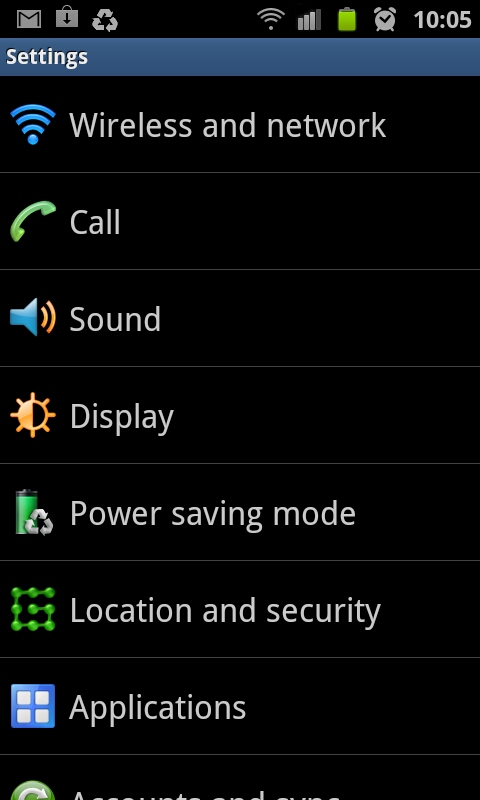
Go into your phone's settings:


There, tap on "Wireless and network", which brings you to this screen:


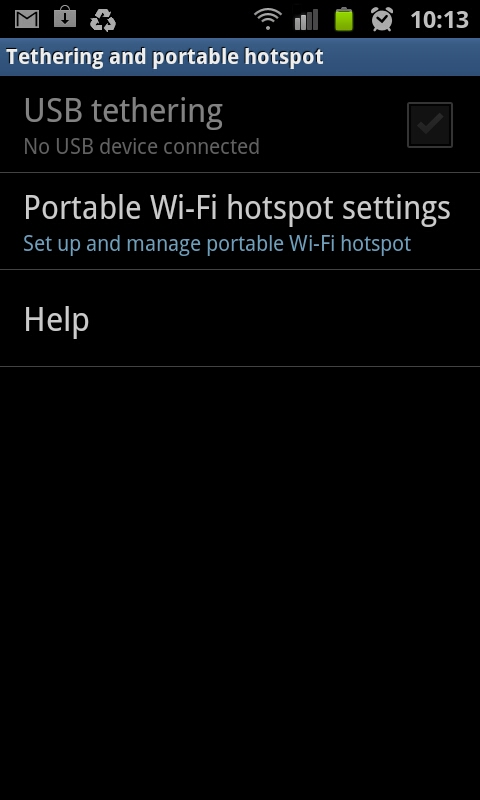
Here, tap on "Tethering and portable hotspot", which takes you here:


Now tap on "Portable Wi-Fi hotspot settings":


On this screen you can enable your wifi hotspot, and also configure the security settings and stuff like that for the phone:


I'd highly recommend using WPA2 PSK as your security setting, otherwise anyone in range can connect to your phone, and with the ludicrous data rates out there, this can get costly, REAL quick!

Now simply connect with your laptop/tablet/other cellphone to your phone's wifi hotspot, enter the password, and you should be good to go! Very handy for if you don't have a 3g dongle or built-in 3g in your laptop. Also if you're in South Africa, free wifi hotspots are a very scarce thing - also, the ones that do exist almost never work!

Enjoy!

Thursday, November 10, 2011

Galaxy S2 Photo Editor

The Galaxy S2 comes standard with a very decent photo editor app, called, wait for it :) - "Photo editor" - very handy for a few quick touch ups, cropping or rotating. It's not a full Photoshop type app, but for every day use, it does the job nicely!

In this post I'll quickly go over all the features it has - starting the app, allows you to select which image you want to edit:


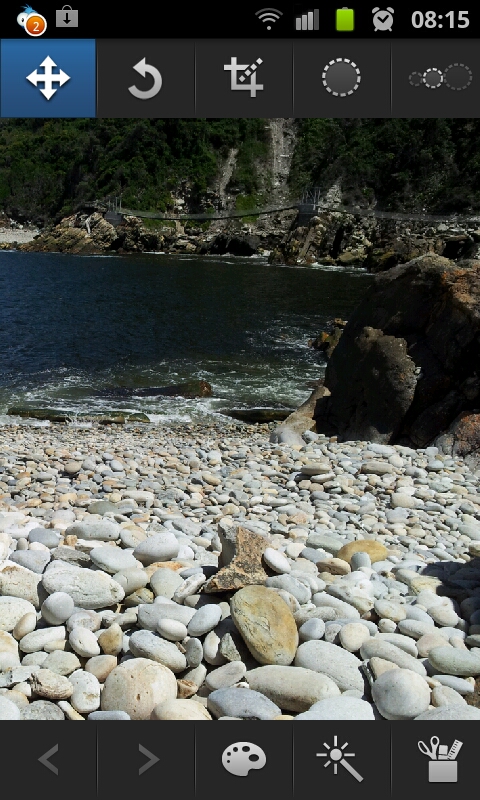
You can either select an existing image, or take a new one... Once you've selected the photo you want to edit, you'll get a neat interface with everything you need right there:


The most basic feature any decent photo editor app must have is a rotate one, and luckily, this one does! It also includes "flip horizontally" and "flip vertically" features:


The next one you'd need would be a cropping tool - we always get stuff like fingers or bystanders that spoil the photo, so cropping the pic can easily fix that. It can even turn a crappy photo into a MASTERPIECE!!!

This little app also have several selection related tools and features, which allows you to make edits to only certain parts of a photo:


At the bottom you'll see a back and forward button, so you can undo and redo any steps you take... Next to that you have a paint pallet icon, which gives you options to play with the brightness and contrast settings:


The magic wand tool gives you options to make some blur related changes to your selection (you need to make a selection first for this to work):


The final tool in the list gives you some other effects you can apply to your pic:


So there you have it, that covers the stock standard "Photo editor" that comes by default with the Galaxy S2 - it's got enough to allow you to do the basics, but it won't be used by professional photographers :) (they'll anyway rather use their PC or Mac)

I'll have a look to see what alternatives to the standard photo editor there are out there, and maybe do some reviews on them too.

Till next time!

Music Hub Still not in SA

Yes, if you live in South Africa, and plan on getting the Samsung Galaxy S2 for it's "music hub" feature, don't because it is still not available locally:


Yup, very annoying! At least the Advertising Standards Authority of South Africa forced Samsung to remove the advert for the music hub on their website - see that article here.

Thursday, November 3, 2011

Some more photos

It's been quite a while since I've posted on my blog, so sorry about that :) - got crazy busy the last few weeks, we took a week long holiday, and clients always see that as a big catastrophe, and starts sending lots and lots of work our way!

Anyway, here's some photos I took with the Galaxy S2's camera while we were on holiday down the Garden Route - I really like the panorama feature :)


(Swellendam Mountains)


(Cave at Mossel Bay)


(On the Outeniekwa Pass)


(Buffalo Bay)


(this tree is between 600 and 800 years old apparently - 36 meters tall, and circumference is 9 meters)


Still very impressed with my phone's camera - really handy to have when you don't have your regular one close by...

Till next time!

Monday, October 10, 2011

Cool free live wallpapers

One of the very sweet features of the Galaxy S2, and Android phones in general, is there ability to display live wallpapers - if you don't know what this means, it's basically an animated wallpaper, but not just simple animations like GIF files for example - these can be interactive and feature some very cool effects and so on.

I did a quick search, and found a few very cool ones, and best of all, they're all free!

First one is a very nice Koi pond, with live (digital though :) fish that you can feed, and when you touch the screen you see the ripples in the water, which is quite nice. Here are some screen shots (but these don't really do it justice, best would be to just download it and check it out yourself in real time!):


In the last one I tried showing the ripples in the water, but it didn't work that well.

Get it here

The next one I have is 3D FireFlies - this one also looks great. Here are some screen shots:


Get it here

After that one I have Inferno Galaxy, which looks like a space scene that's on fire. Very cool! Here are some shots:


Get it here

My second last option is Snowfall live wallpaper:


Very pretty (a bit girly though, I like the much more manly Inferno Galaxy YEAH!! :)

Anyway, get it here

And the last one I checked out is some nice clouds with LIGHTNING - who doesn't like lightning hehe:


I took about 20 shots just to get a decent lightning flash, these were pretty much the best ones I could get.

Get it here

There you have it, 5 really nice Live Wallpapers for your Galaxy S2/Android phone. Now, I can imagine some of these can be quite a battery hog, but I don't have any stats on those. I do charge my phone every day, as the battery doesn't last, so for now I'll leave one of them on and will let you know if it makes that big a difference.

If you have some Live Wallpapers you'd like to recommend, feel free to leave a comment!

Cheers, and as always, till next time!

Monday, October 3, 2011

Some nice Widgets

One of the many many ways to customize your Galaxy S2, is by adding custom widgets to your home screen. These come in all shapes and sizes, and most of them give you several options on how the widgets looks and works, etc.

Here is one of my screens filled with some widgets I like:


1. The first one I have on there is the APN on/off widget - what that basically does is it turns off cellular data (very handy if you live in South Africa, and cannot afford the ludicrously expensive data packages available) - get it here

2. The second one might puzzle you a bit, it's my Blizzard Battle.net Mobile Authenticator - if you play any of Blizzard's games on your PC (Like World of Warcraft or Star Craft 2), then this is just a little extra security. When logging in on your Battle.net account, it will also ask for the code this widget generates. It keeps on generating new ones, so if you're also worried about account theft, then you got to get this on your Android phone - get it here

3. Next to that I have a flash light widget, which instantly turns on the LED on the back of my phone, turning it into a handy flash light :) - get it here

4. The first icon in my second row is a link to one of my Google Reader feeds (to this blog actually) - for that I have the 3rd party Google Reader app gReader - I find it works a bit better than Google's own version. Get it here

5. Then I have a data counter widget, showing me the amount of incoming and outgoing data for the month, both for Wi-fi and 3G - once again a handy little app if you have to pay extra for cellular data - get it here

6. Next to that is a battery widget, the normal battery icon doesn't give you an exact estimate of how much battery life you have remaining, this one gives you a nice percentage value - get it here

7. This is the stock standard Google Search Widget that comes with the phone, here you can type anything in, and search either the web, your apps, your contacts or all of the above. You can tap the Mic icon to say what it is you are looking for :)

8. The last widget I have on here is Evernote - this is a notes taking app, and allows you to quickly take a written note, a note with a photo or video, or recording something. It works well, and is a nice and quick way of making a note. The only thing I didn't like about this one is that you must register for a free account to be able to use it on your phone - I have registered on close to a billion sites already (or so it feels). Anyway,  get it here

There are lots more cool widgets out there of course. Feel free to leave a comment and suggest some of your favourite widgets, I'll have a look, and if they're as cool as you say, I'll do a little review of them!

As always, till next time!

Friday, September 16, 2011

How to get AllShare on the Galaxy S2 to work

If you have the Galaxy S2, you would have noticed an app in the list called AllShare:


See, that blue one in the top row.

Now, at first it didn't work on my phone, it just didn't connect. What you can do with it, however, is actually pretty cool - you can play items that's on your PC on your phone, and vice versa. NEAT!

I did a little digging, and found out how to get it to work. Note, I have Windows 7, and use the normal Media Player program that comes per default out with Windows, so this guide will help you to get yours working if you have the same OS and use Media Player...

So, to get it to work, you must first allow your PC to be accessed in this way. In Media Player, that's quite simple to do. When your Media Player is open, just below the Title bar, you'll see the Back and Forward buttons, and below that the Organize, Stream and Create playlist options:


Clicking on the Stream option, gives you a few options:


If you want to control your Media Player from your phone, tick the "Allow remote control of my Player..." option, and if you want to play the files on your PC on your phone, tick "Automatically allow devices to play my media..." option. You'll get some warnings, but if you're confident that your network is secure, and you don't mind sharing your files like this, you can go ahead and enable the features.

That should set up your PC to allow the AllShare app to fully work now.

So, the AllShare app works like so - starting it up gives you this:


From this screen you can share the Videos, Pictures and Audio files on your phone - that is, view them on your PC. The only small issue I have here, is when tapping on any of the options, it just gives you one big list with everything of that category on your phone, no folders or any order, so if you have lots of files, it can take a while to sift through them.

Here's a list of my Videos:


And, when tapping one, you get to choose on which device you'd like to play it:


Playing the file gives you the controls for it on your phone, but it obviously plays on the device (in my case, my PC):


And here's a screen shot to serve as proof that the movie is playing on my PC:


Now you have to admit, once again, that is a very cool feature! :)

You can just as easily play the files that are on your PC (loaded in your Media Player) on your phone. You tap on the Remote device option at the top, which will show you all the devices that have media sharing like this enabled on your network:


Tapping on the device, will open it up, and give you the options to browse the various media files in your Media Player, including play lists.


Here is my Collective Soul (GREAT BAND!) playlist:


And tapping on a file, plays it in your phone:


The AllShare app is really cool as you can see, just another awesome feature of the Samsung Galaxy S2. Damn this is a cool phone, if you're even considering getting one, just stop hesitating and DO IT!!

So, that covers how to work with the AllShare app that comes with the phone. It would have been nice for there to be some sort of tutorial or manual on how to get it working, but, luckily, I've written this short guide :)

Till next time!