Showing posts with label galaxy s2. Show all posts

Tuesday, November 29, 2011

Lots of FREE, PREMIUM GAMES

Please have a look at this screen shot:


Yes, you're seeing it correctly. On the Samsung Galaxy S2, via the Samsung App Market, all of these games have finally come to the S2 for free as well!

Here's the list:

  • Assassin's Creed
  • Hero of Sparta
  • Modern Combat 2
  • Brother in Arms 2
  • Avatar
  • Dungeon Hunter (I'm busy downloading this one :)
  • Spiderman
  • Ganstar Miami Vindication
I'll try to go through them all eventually! Like I said, I'm busy getting Dungeon Hunter, will let you guys know what I think of it!

EDIT: Dungeon Hunter, sadly, appears to only be a demo :( They shouldn't say Free, when it is, in fact, NOT FREE. GRRR - will let you know about the others...

If you didn't know this before, these games weren't available on the S2 (only the normal Galaxy), but it looks like they've finally updated them all to be compatible with the Galaxy S2!

Sheesh, wish I weren't so busy :(

Will keep you posted! Till next time!

Thursday, November 10, 2011

Galaxy S2 Photo Editor

The Galaxy S2 comes standard with a very decent photo editor app, called, wait for it :) - "Photo editor" - very handy for a few quick touch ups, cropping or rotating. It's not a full Photoshop type app, but for every day use, it does the job nicely!

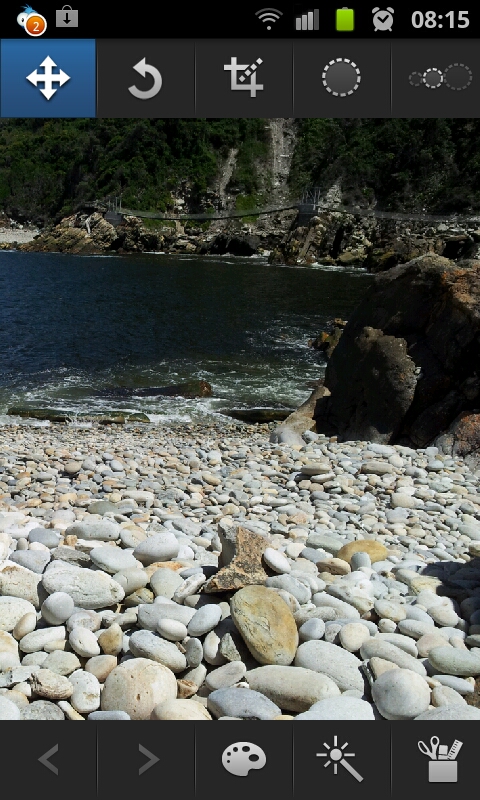
In this post I'll quickly go over all the features it has - starting the app, allows you to select which image you want to edit:


You can either select an existing image, or take a new one... Once you've selected the photo you want to edit, you'll get a neat interface with everything you need right there:


The most basic feature any decent photo editor app must have is a rotate one, and luckily, this one does! It also includes "flip horizontally" and "flip vertically" features:


The next one you'd need would be a cropping tool - we always get stuff like fingers or bystanders that spoil the photo, so cropping the pic can easily fix that. It can even turn a crappy photo into a MASTERPIECE!!!

This little app also have several selection related tools and features, which allows you to make edits to only certain parts of a photo:


At the bottom you'll see a back and forward button, so you can undo and redo any steps you take... Next to that you have a paint pallet icon, which gives you options to play with the brightness and contrast settings:


The magic wand tool gives you options to make some blur related changes to your selection (you need to make a selection first for this to work):


The final tool in the list gives you some other effects you can apply to your pic:


So there you have it, that covers the stock standard "Photo editor" that comes by default with the Galaxy S2 - it's got enough to allow you to do the basics, but it won't be used by professional photographers :) (they'll anyway rather use their PC or Mac)

I'll have a look to see what alternatives to the standard photo editor there are out there, and maybe do some reviews on them too.

Till next time!

Music Hub Still not in SA

Yes, if you live in South Africa, and plan on getting the Samsung Galaxy S2 for it's "music hub" feature, don't because it is still not available locally:


Yup, very annoying! At least the Advertising Standards Authority of South Africa forced Samsung to remove the advert for the music hub on their website - see that article here.

Memo Notes, and a better alternative

The Galaxy S2 comes standard with their Memo app, which you'd basically use to make quick notes:


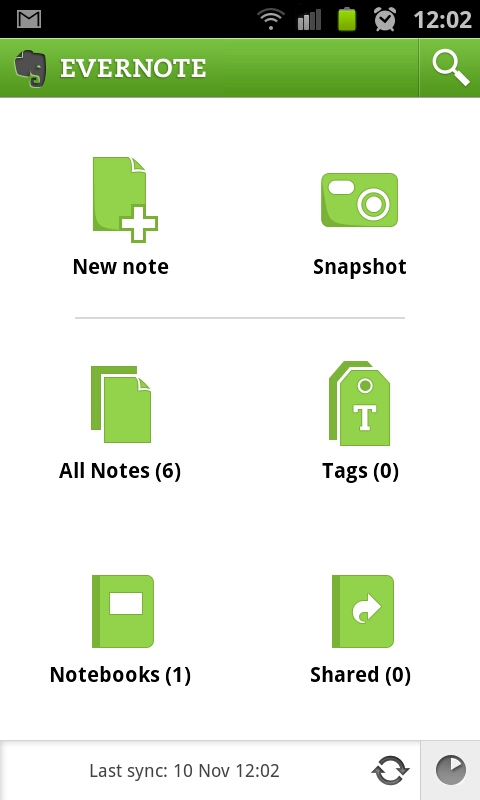
It works ok, but I'm not too fond of it. I decided to look for an alternative, and found Evernote - the nice thing about Evernote, is it includes the ability to take a quick picture or video or even voice recording, as well as traditional text notes. Also, a very handy widget is available.

Furthermore, you must create an online account, which means your notes gets synchronized with the Evernote website, so you can access your notes from pretty much every where.


It works a lot better than the default Memo app that comes with the phone in my opinion, and I'd highly recommend getting it as soon as you can, it will really help when you need to make a note of something real quick :)

Get it here

Thursday, November 3, 2011

Some more photos

It's been quite a while since I've posted on my blog, so sorry about that :) - got crazy busy the last few weeks, we took a week long holiday, and clients always see that as a big catastrophe, and starts sending lots and lots of work our way!

Anyway, here's some photos I took with the Galaxy S2's camera while we were on holiday down the Garden Route - I really like the panorama feature :)


(Swellendam Mountains)


(Cave at Mossel Bay)


(On the Outeniekwa Pass)


(Buffalo Bay)


(this tree is between 600 and 800 years old apparently - 36 meters tall, and circumference is 9 meters)


Still very impressed with my phone's camera - really handy to have when you don't have your regular one close by...

Till next time!

Wednesday, October 12, 2011

A big THANKS (and clocks!)

Hi all! My first blog post, my intro, I did on 23 July, just a few days after I got my Samsung Galaxy S2. Since then, I've done just under 40 blog posts about apps and widgets and games and everything in between about my phone!

I've had great feedback so far, and I keep getting more and more visitors every week, so thanks to all for visiting! Since July I've had more than 10000 page views on this blog, and without my loyal readers and followers that wouldn't have happened!

Anyway, I'll try my best to keep the good posts coming, I still have lots to cover about my phone, and now that I've used an Android based device, I'll never go back! Don't get me wrong, my wife has the iPhone 4, and it's also a great device, and lots of my friends are very loyal to their Blackberries!

Well, thanks again for the great feedback and support so far!

Just for fun, here is my 6th home screen on my phone, it has all the analogue clocks that comes standard with the Galaxy S2:


And, as always, till next time!

Wednesday, October 5, 2011

How to turn off the "fully charged" sound

If you also have a Samsung Galaxy S2, by now you would have noticed that the phone gives you a nice and loud ding when it's fully charged, which is perfect if you want to be awoken in the middle of the night!

Unfortunately, there isn't a way to turn of this bloody annoying sound with the normal settings - you can root your device, but most users don't know how (or don't want to) do that - me included. Luckily, someone has created a nice little app especially for the Galaxy S2, that mutes your phone just before it gets fully charged. It even has some settings, like when you want the app to be "active" and so on.


Aside from that, it doesn't do anything else, but it's a great app if you charge the phone overnight in your room when you sleep.

Get it here

Till next time!

Friday, September 16, 2011

How to get AllShare on the Galaxy S2 to work

If you have the Galaxy S2, you would have noticed an app in the list called AllShare:


See, that blue one in the top row.

Now, at first it didn't work on my phone, it just didn't connect. What you can do with it, however, is actually pretty cool - you can play items that's on your PC on your phone, and vice versa. NEAT!

I did a little digging, and found out how to get it to work. Note, I have Windows 7, and use the normal Media Player program that comes per default out with Windows, so this guide will help you to get yours working if you have the same OS and use Media Player...

So, to get it to work, you must first allow your PC to be accessed in this way. In Media Player, that's quite simple to do. When your Media Player is open, just below the Title bar, you'll see the Back and Forward buttons, and below that the Organize, Stream and Create playlist options:


Clicking on the Stream option, gives you a few options:


If you want to control your Media Player from your phone, tick the "Allow remote control of my Player..." option, and if you want to play the files on your PC on your phone, tick "Automatically allow devices to play my media..." option. You'll get some warnings, but if you're confident that your network is secure, and you don't mind sharing your files like this, you can go ahead and enable the features.

That should set up your PC to allow the AllShare app to fully work now.

So, the AllShare app works like so - starting it up gives you this:


From this screen you can share the Videos, Pictures and Audio files on your phone - that is, view them on your PC. The only small issue I have here, is when tapping on any of the options, it just gives you one big list with everything of that category on your phone, no folders or any order, so if you have lots of files, it can take a while to sift through them.

Here's a list of my Videos:


And, when tapping one, you get to choose on which device you'd like to play it:


Playing the file gives you the controls for it on your phone, but it obviously plays on the device (in my case, my PC):


And here's a screen shot to serve as proof that the movie is playing on my PC:


Now you have to admit, once again, that is a very cool feature! :)

You can just as easily play the files that are on your PC (loaded in your Media Player) on your phone. You tap on the Remote device option at the top, which will show you all the devices that have media sharing like this enabled on your network:


Tapping on the device, will open it up, and give you the options to browse the various media files in your Media Player, including play lists.


Here is my Collective Soul (GREAT BAND!) playlist:


And tapping on a file, plays it in your phone:


The AllShare app is really cool as you can see, just another awesome feature of the Samsung Galaxy S2. Damn this is a cool phone, if you're even considering getting one, just stop hesitating and DO IT!!

So, that covers how to work with the AllShare app that comes with the phone. It would have been nice for there to be some sort of tutorial or manual on how to get it working, but, luckily, I've written this short guide :)

Till next time!

Monday, September 12, 2011

Standard Calculator, and some great replacements

The Samsung Galaxy S2 obviously (like all phones) comes with a calculator app. I had a quick look at it, and it is very basic (I think the only advanced feature it contains is the ability to use parentheses, or round brackets if you will).


The only option it includes is to change the text size, and to clear the history. As you go along, it keeps everything in the display part about the keypad (you can swipe down the keypad section to see everything a bit more clearly).

EDIT: It turns out there's a bit more to the standard calculator app that what I first noticed. If you turn the phone horizontally, you get access to a full scientific calculator. *sheepish grin* - Thanks Martin for pointing that out!


Anyway, a short while ago I need a scientific calculator (EDIT: see above if you want to use the normal calculator app for that...), because I had to work with Sin Cos and Tan (uggh...). I did a quick search on the App Market and got myself RealCalc, which even looks like the same Sharp calculators we had at school:


Ahh that's a lot better :) Get it here

It even includes some nice features like a unit converter, and constant values:


Pretty neat!

I showed off my new snazzy scientific calculator app to my father-in-law, who is a mechanical engineer, and he asked me if there's an app like his old HP-48, which is a graphic calculator using the Reverse Polish Notation (big words!) - of course I quickly had a look, and downloaded Droid48, which is basically an exact copy of the HP one:


It works way different than a normal, human calculator :) - but if you're an engineer and will be needing one of these, luckily there is one available! Get it here

There you have it, some info on the basic calculator app, and 2 great replacements if you need just a little bit more!

Till next time!

Wednesday, September 7, 2011

Game Review: Asphalt 6: Adrenaline Part 2

This is only going to be a short post regarding the very awesome Asphalt 6: Adrenaline, which is available on the Samsung App Market for free (for the first 300000 downloads that is!).

If you haven't downloaded the game yet, you better do it, I'm sure a sweet title like this one will be very popular, and the allocated free copies will get claimed real soon!

Then, I've already covered my first few minutes of the game, and only did the normal racing game mode (see that post here).

I just did a quick career elimination race. How that basically works is there is a timer that counts down, and every time the clock reaches 0:00, the racer who is last gets eliminated.

Once again you must place at least 3rd to be able to continue, but I had a luck and came in first on my first elimination game.

By winning the races, I unlocked a few more stuff, like a tuning kit, and a new car, the KTM X-Bow. Each race also has secondary objective, like scoring a certain amount of drifting points, and so on. Depending on how you fare, you get stars for each race, and these you use to unlock more cars and bikes.

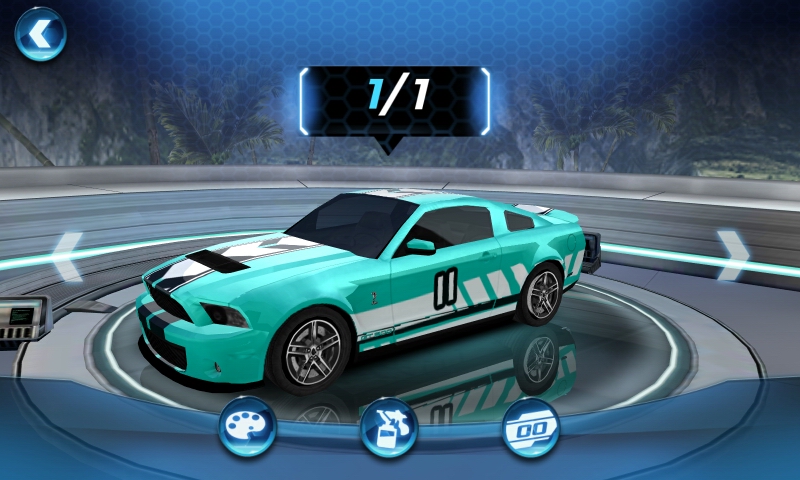
Also, you can easily change the colour of your car, and as you go a long you unlock decals. See some details about the tuning and customization options in the screen shots below:


Very fun game, will do some more coverage when I've played some more!

Stay tuned!