I have some good news for all of you with Android devices. The guys from www.box.com have created an Android app, which you can get here, and by simply registering for a free account, they'll upgrade your storage space to a very very sweet 50 gigs!
Here's the instructions which I copied from their site:
This promotion ends on Friday, March 23, 2012 at 11:59pm PST, so grab your free 50GB on Box by following these steps:
1. Visit the Android Marketplace and download Box for Android
2. Log into your account or register for a new one directly from the app
3. Start sharing and collaborating in the cloud
4. (optional but recommended) Tell the world how you'll use your 50GB with the hashtag #Box50GB
As you can see the special is about to run out, so do it quick!
You can then backup your files online, like your photos and important documents. Very handy indeed, and 50 gigs is quite a lot, especially if it's free!
Hope you get it! I got mine a few minutes ago...
Till next time!
Showing posts with label essential. Show all posts
Showing posts with label essential. Show all posts
Friday, February 24, 2012

Thursday, February 9, 2012
Upgraded to 2.3.4
With my Samsung Galaxy S2's built in Update method, I updated my phone to Android 2.3.4 a week or so ago.
I'm happy to report that it was quite straightforward to do, and you don't have to do it via Kies at all, you simply do it from the settings section of the phone.
Here's a quick tutorial on how to go about it:
First, go to Settings and scroll down to the bottom:

At the bottom of the list, you'll see the option for "About phone" - go ahead and tap on that:

This shows you all the info of your phone, and at the top is the option to do a Software Update for your phone. Tapping on that one gives you:

From here, just hit Update at the top, and follow the on-screen instructions. That's unfortunately as far as my instructions can go, because I've already updated mine, and when I try it, I simply get a message telling me there are no current updates available.
Just note, the update does take several minutes to complete, and while the update is in progress, you won't be able to use the phone (make and receive calls) at all. Make sure your phone is charged before you do something like this...
Till next time!
I'm happy to report that it was quite straightforward to do, and you don't have to do it via Kies at all, you simply do it from the settings section of the phone.
Here's a quick tutorial on how to go about it:
First, go to Settings and scroll down to the bottom:

At the bottom of the list, you'll see the option for "About phone" - go ahead and tap on that:

This shows you all the info of your phone, and at the top is the option to do a Software Update for your phone. Tapping on that one gives you:

From here, just hit Update at the top, and follow the on-screen instructions. That's unfortunately as far as my instructions can go, because I've already updated mine, and when I try it, I simply get a message telling me there are no current updates available.
Just note, the update does take several minutes to complete, and while the update is in progress, you won't be able to use the phone (make and receive calls) at all. Make sure your phone is charged before you do something like this...
Till next time!
Thursday, November 10, 2011
Memo Notes, and a better alternative
The Galaxy S2 comes standard with their Memo app, which you'd basically use to make quick notes:


It works ok, but I'm not too fond of it. I decided to look for an alternative, and found Evernote - the nice thing about Evernote, is it includes the ability to take a quick picture or video or even voice recording, as well as traditional text notes. Also, a very handy widget is available.
Furthermore, you must create an online account, which means your notes gets synchronized with the Evernote website, so you can access your notes from pretty much every where.


It works a lot better than the default Memo app that comes with the phone in my opinion, and I'd highly recommend getting it as soon as you can, it will really help when you need to make a note of something real quick :)
Get it here


It works ok, but I'm not too fond of it. I decided to look for an alternative, and found Evernote - the nice thing about Evernote, is it includes the ability to take a quick picture or video or even voice recording, as well as traditional text notes. Also, a very handy widget is available.
Furthermore, you must create an online account, which means your notes gets synchronized with the Evernote website, so you can access your notes from pretty much every where.

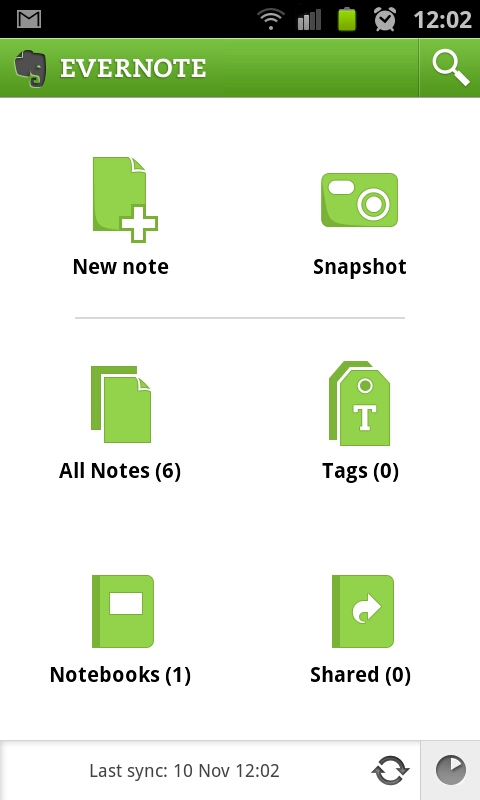

It works a lot better than the default Memo app that comes with the phone in my opinion, and I'd highly recommend getting it as soon as you can, it will really help when you need to make a note of something real quick :)
Get it here
Wednesday, October 5, 2011
How to turn off the "fully charged" sound
If you also have a Samsung Galaxy S2, by now you would have noticed that the phone gives you a nice and loud ding when it's fully charged, which is perfect if you want to be awoken in the middle of the night!
Unfortunately, there isn't a way to turn of this bloody annoying sound with the normal settings - you can root your device, but most users don't know how (or don't want to) do that - me included. Luckily, someone has created a nice little app especially for the Galaxy S2, that mutes your phone just before it gets fully charged. It even has some settings, like when you want the app to be "active" and so on.

Aside from that, it doesn't do anything else, but it's a great app if you charge the phone overnight in your room when you sleep.
Get it here
Till next time!
Unfortunately, there isn't a way to turn of this bloody annoying sound with the normal settings - you can root your device, but most users don't know how (or don't want to) do that - me included. Luckily, someone has created a nice little app especially for the Galaxy S2, that mutes your phone just before it gets fully charged. It even has some settings, like when you want the app to be "active" and so on.

Aside from that, it doesn't do anything else, but it's a great app if you charge the phone overnight in your room when you sleep.
Get it here
Till next time!
Friday, September 16, 2011
How to get AllShare on the Galaxy S2 to work
If you have the Galaxy S2, you would have noticed an app in the list called AllShare:

See, that blue one in the top row.
Now, at first it didn't work on my phone, it just didn't connect. What you can do with it, however, is actually pretty cool - you can play items that's on your PC on your phone, and vice versa. NEAT!
I did a little digging, and found out how to get it to work. Note, I have Windows 7, and use the normal Media Player program that comes per default out with Windows, so this guide will help you to get yours working if you have the same OS and use Media Player...
So, to get it to work, you must first allow your PC to be accessed in this way. In Media Player, that's quite simple to do. When your Media Player is open, just below the Title bar, you'll see the Back and Forward buttons, and below that the Organize, Stream and Create playlist options:

Clicking on the Stream option, gives you a few options:

If you want to control your Media Player from your phone, tick the "Allow remote control of my Player..." option, and if you want to play the files on your PC on your phone, tick "Automatically allow devices to play my media..." option. You'll get some warnings, but if you're confident that your network is secure, and you don't mind sharing your files like this, you can go ahead and enable the features.
That should set up your PC to allow the AllShare app to fully work now.
So, the AllShare app works like so - starting it up gives you this:

From this screen you can share the Videos, Pictures and Audio files on your phone - that is, view them on your PC. The only small issue I have here, is when tapping on any of the options, it just gives you one big list with everything of that category on your phone, no folders or any order, so if you have lots of files, it can take a while to sift through them.
Here's a list of my Videos:

And, when tapping one, you get to choose on which device you'd like to play it:

Playing the file gives you the controls for it on your phone, but it obviously plays on the device (in my case, my PC):


Now you have to admit, once again, that is a very cool feature! :)
You can just as easily play the files that are on your PC (loaded in your Media Player) on your phone. You tap on the Remote device option at the top, which will show you all the devices that have media sharing like this enabled on your network:


And tapping on a file, plays it in your phone:


See, that blue one in the top row.
Now, at first it didn't work on my phone, it just didn't connect. What you can do with it, however, is actually pretty cool - you can play items that's on your PC on your phone, and vice versa. NEAT!
I did a little digging, and found out how to get it to work. Note, I have Windows 7, and use the normal Media Player program that comes per default out with Windows, so this guide will help you to get yours working if you have the same OS and use Media Player...
So, to get it to work, you must first allow your PC to be accessed in this way. In Media Player, that's quite simple to do. When your Media Player is open, just below the Title bar, you'll see the Back and Forward buttons, and below that the Organize, Stream and Create playlist options:
Clicking on the Stream option, gives you a few options:
If you want to control your Media Player from your phone, tick the "Allow remote control of my Player..." option, and if you want to play the files on your PC on your phone, tick "Automatically allow devices to play my media..." option. You'll get some warnings, but if you're confident that your network is secure, and you don't mind sharing your files like this, you can go ahead and enable the features.
That should set up your PC to allow the AllShare app to fully work now.
So, the AllShare app works like so - starting it up gives you this:

From this screen you can share the Videos, Pictures and Audio files on your phone - that is, view them on your PC. The only small issue I have here, is when tapping on any of the options, it just gives you one big list with everything of that category on your phone, no folders or any order, so if you have lots of files, it can take a while to sift through them.
Here's a list of my Videos:

And, when tapping one, you get to choose on which device you'd like to play it:

Playing the file gives you the controls for it on your phone, but it obviously plays on the device (in my case, my PC):

And here's a screen shot to serve as proof that the movie is playing on my PC:

Now you have to admit, once again, that is a very cool feature! :)
You can just as easily play the files that are on your PC (loaded in your Media Player) on your phone. You tap on the Remote device option at the top, which will show you all the devices that have media sharing like this enabled on your network:

Tapping on the device, will open it up, and give you the options to browse the various media files in your Media Player, including play lists.

Here is my Collective Soul (GREAT BAND!) playlist:

And tapping on a file, plays it in your phone:

The AllShare app is really cool as you can see, just another awesome feature of the Samsung Galaxy S2. Damn this is a cool phone, if you're even considering getting one, just stop hesitating and DO IT!!
So, that covers how to work with the AllShare app that comes with the phone. It would have been nice for there to be some sort of tutorial or manual on how to get it working, but, luckily, I've written this short guide :)
Till next time!
Wednesday, September 14, 2011
QR Code Scanner: QR Droid
If you've never heard of so called "QR Codes" - it is a kind of bar code that can contain different kinds of information. It is already very popular to have a QR code printed on the back of your business card with all of your contact details embedded in it, which makes it a lot easier to get the info of the card into your phone, for example.
Now, most phones nowadays have cameras, and with special apps, you can easily turn your phone into a QR code scanner.
I have QR Droid (Get it here) installed on my Samsung Galaxy S2, and find it quite useful, as these codes are popping up more and more out there!
Here is an example of one:

If the scanning app you use allows it, it will automatically turn phone numbers and website addresses into clickable links.
A good place to generate these codes for yourself is here
WARNING: As you can imagine, people can generate these codes that contains links to malicious websites for example, so do not scan a code from a site or place you don't trust!
As for QR Droid, which I use, it is very straightforward and simple to use. It gives you options to scan a new code with your phone's camera, use a saved image on your phone, from a image URL, or you can even enter in a bar code (yes it scans normal bar codes as well...)


Now, most phones nowadays have cameras, and with special apps, you can easily turn your phone into a QR code scanner.
I have QR Droid (Get it here) installed on my Samsung Galaxy S2, and find it quite useful, as these codes are popping up more and more out there!
Here is an example of one:
EDIT: I've made a post with QR Codes to my favourite games - go check it out!
If the scanning app you use allows it, it will automatically turn phone numbers and website addresses into clickable links.
A good place to generate these codes for yourself is here
WARNING: As you can imagine, people can generate these codes that contains links to malicious websites for example, so do not scan a code from a site or place you don't trust!
As for QR Droid, which I use, it is very straightforward and simple to use. It gives you options to scan a new code with your phone's camera, use a saved image on your phone, from a image URL, or you can even enter in a bar code (yes it scans normal bar codes as well...)


Now that QR codes are becoming more popular by the day, getting an app like QR Droid is a must if you have a smartphone with a camera!
Till next time!
Tuesday, September 6, 2011
Afrikaans on the Galaxy S2, plus alternative keyboard
If you have a Samsung Galaxy S2, and you don't use the Swype keyboard feature (I haven't tried it yet...), then you would also have notice a flaw or 2 on the built-in keyboard it comes with:
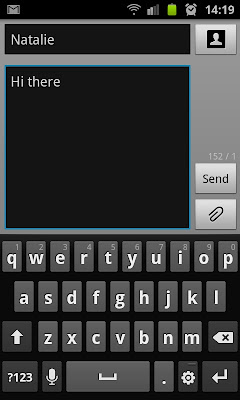
Yup, as you can see there's no comma! To type a comma, you have to press and hold the period key, which gives you the other options, like the comma, question mark, quotes, etc.
I didn't think at first that this would bother me that much, but it turns out I type a lot of commas when I type! Also, another thing that I wasn't too fond of was the inability of the phone to support my home language, which is Afrikaans (yes, English is my SECOND language - not too shabby hey!) - so I did what every tech nerd would do, and hit the good old Google.
After a few minutes, I had a new keyboard app installed, and a few minutes after that, my predictive text was suggesting Afrikaans words as I typed them!
First off, there's no support for Afrikaans by default on Android, so the only way to get Afrikaans as a language when you type, is to actually get a third party keyboard. I downloaded "AnySoftKeyBoard" - get it here
After installing it, you must activate it as you main keyboard. To do this go to the Settings screen, and tap the Language and keyboard option:

Here you'll see a new option under the keyboard settings header, namely AnySoftKeyboard - simply tick the box next to it, and you're good to go (note - you'll get a warning from the phone mentioning key logging and so on, I've been assured that this app doesn't collect any personal data, and it has had between 100000 and 500000 installs according to the Android Market, so I reckon it's safe!):

At the bottom of this page you'll also see the AnySoftKeyboard settings button, which has a whole lot of options and features you can tweak to your exact liking. I just left it on the default settings for the time being.
Now, when typing a message, and the new keyboard isn't active yet, you have to change it to use the new keyboard - tap and hold on the button that looks like a gear (next to the enter key, bottom right), and select AnySoftKeyboard from the list there, which will give you a the new keyboard:

Next, to get Afrikaans loaded - click here to download the Afrikaans Language pack for the AnySoftKeyboard (A big thanks to they guys at Skullkey who created this language pack) - next get it on your phone (I used ES File Manager to copy it over my Wifi network, but you can use the USB cable too) - this is an external app, so to install it, we must first allow the phone to install third party, or non-Market, apps.
To do that is luckily very easy. Simply go into your phone's settings, and tap on Applications:
At the top of the list, is the check box for "Unknown sources" - go ahead and check this to enable your phone to install apps located on your phone's memory or SD card. (You'll once again see a warning message, read it and click Ok if you're happy).

Now browse to where you copied the file on your phone, and tap on it to install it:

Once it's installed, you'll be pleasantly surprised that your AnySoftKeyboard now includes Afrikaans predictive text - handy if you're an Afrikaans speaking individual like myself :)

Also, it has a COMMA BUTTON!!! whoohoo :) - And, of course, there are many other languages you can get for it as well!
Please note, I cannot be held responsible if you break something, so if you do any of the above, or anything on this website for that matter, do so at your OWN RISK!
That's that! Till next time!

Yup, as you can see there's no comma! To type a comma, you have to press and hold the period key, which gives you the other options, like the comma, question mark, quotes, etc.
I didn't think at first that this would bother me that much, but it turns out I type a lot of commas when I type! Also, another thing that I wasn't too fond of was the inability of the phone to support my home language, which is Afrikaans (yes, English is my SECOND language - not too shabby hey!) - so I did what every tech nerd would do, and hit the good old Google.
After a few minutes, I had a new keyboard app installed, and a few minutes after that, my predictive text was suggesting Afrikaans words as I typed them!
First off, there's no support for Afrikaans by default on Android, so the only way to get Afrikaans as a language when you type, is to actually get a third party keyboard. I downloaded "AnySoftKeyBoard" - get it here
After installing it, you must activate it as you main keyboard. To do this go to the Settings screen, and tap the Language and keyboard option:

Here you'll see a new option under the keyboard settings header, namely AnySoftKeyboard - simply tick the box next to it, and you're good to go (note - you'll get a warning from the phone mentioning key logging and so on, I've been assured that this app doesn't collect any personal data, and it has had between 100000 and 500000 installs according to the Android Market, so I reckon it's safe!):

At the bottom of this page you'll also see the AnySoftKeyboard settings button, which has a whole lot of options and features you can tweak to your exact liking. I just left it on the default settings for the time being.
Now, when typing a message, and the new keyboard isn't active yet, you have to change it to use the new keyboard - tap and hold on the button that looks like a gear (next to the enter key, bottom right), and select AnySoftKeyboard from the list there, which will give you a the new keyboard:

Next, to get Afrikaans loaded - click here to download the Afrikaans Language pack for the AnySoftKeyboard (A big thanks to they guys at Skullkey who created this language pack) - next get it on your phone (I used ES File Manager to copy it over my Wifi network, but you can use the USB cable too) - this is an external app, so to install it, we must first allow the phone to install third party, or non-Market, apps.
To do that is luckily very easy. Simply go into your phone's settings, and tap on Applications:
At the top of the list, is the check box for "Unknown sources" - go ahead and check this to enable your phone to install apps located on your phone's memory or SD card. (You'll once again see a warning message, read it and click Ok if you're happy).

Now browse to where you copied the file on your phone, and tap on it to install it:

Once it's installed, you'll be pleasantly surprised that your AnySoftKeyboard now includes Afrikaans predictive text - handy if you're an Afrikaans speaking individual like myself :)

Also, it has a COMMA BUTTON!!! whoohoo :) - And, of course, there are many other languages you can get for it as well!
Please note, I cannot be held responsible if you break something, so if you do any of the above, or anything on this website for that matter, do so at your OWN RISK!
That's that! Till next time!
Sunday, August 7, 2011
My top 5 Essential Apps (so far)
I've had my Galaxy S2 for just a little over two weeks now, and I've download quite a lot of apps from the app market already! This blog post is to make mention to those that I've found most useful, and an absolute must to get for your Android phone.
1. Facebook and/or Twitter and/or Google+
Ok, this is three apps, but they serve pretty much the same purpose. If you have any of the above social networking accounts, and you like to frequent them, then you must get the apps for them.
I've never been a very big tweeter, but since I've had my phone, I've been doing that quite a bit more, and since then, have gotten quite a few new followers (which was pretty stagnant before I started tweeting more...).
The app works very well, you see the people you're following's tweets, can reply on tweets, and you can tweet yourself as well.
As for Facebook, that also works very well, and they've updated the app twice since I got my phone, so at least they're active in fixing bugs and keeping it up to date. It also works well, and gives you pretty much access to everything Facebook has to offer (I haven't tried working with Facebook applications through it though...)
And lastly, Google+ - now, I have a cool 3 people in my circles who are also Google+ users, which means I haven't used this one that much. Will, once Google+ gets some more momentum (for me at least) post some more info on it.
Get Twitter here, Facebook here and Google+ here.
2. Tiny Flashlight + LED
The Samsung Galaxy S2 has a very bright LED at the back that it uses as a flash when taking photos at night, but with this very handy little app you can convert your phone into a flash light - it shows a big button, and a handy battery indicator on it's main page. Tapping the button, yup, you've guessed it, turns on the LED light at the back of the phone. Here's some screen shots:

 Get it here.
3. ES File Explorer
Now, I've already mentioned this little gem of an app on this post, so have a read through there on what it's all about (this one pretty much replaces the standard file manager app that comes with the phone) - probably the best feature of it is allowing you to browse your local network through your Wifi connection.
Get it here
4. APNdroid Free
If you've read my intro post, you will see that I'm from South Africa. Now, being in South Africa still means I'm in AFRICA, which means really EXPENSIVE out of bundle data costs. The contract I'm on with Vodacom doesn't include any data whatsoever, which means that I'll be paying ZAR1.00 per MB that I use. (this is, at the time of this writing, about $0.14)
THAT'S ALOT!!! Anyway, lots of the apps on my phone constantly updates over the internet, and when I'm not home, it uses my cellphone network's 3G network to get that very expensive bytes from. This little app gives you access to a widget, which with a single tap disconnects any data flowing in or out of your phone. A big must if you live in a third world country!
EDIT: I had a look again, and APNdroid Free isn't available any more. Instead, have a look at the APN on/off widget - it does exactly the same thing, plus the icon is a bit nicer looking :)
Get it here
5. Google Sky Map
Ok, so this one isn't very essential, but it's the one I use the most to show off my phone. By using your phone's built-in sensors, and your GPS location, simply tilting your phone (at night) up to the sky will tell you which star/planet you're looking at! Quite nifty, and you can even search for specific objects in the sky, and the phone will point you in the right direction! See, my phone is showing me which way Mars is: ;)

That's it, 5 very cool and essential apps for your Android phone. Feel free to leave a comment and suggest some apps, I'll check them out, and if I like it, will do a post about it!
Till next time!
1. Facebook and/or Twitter and/or Google+
Ok, this is three apps, but they serve pretty much the same purpose. If you have any of the above social networking accounts, and you like to frequent them, then you must get the apps for them.
I've never been a very big tweeter, but since I've had my phone, I've been doing that quite a bit more, and since then, have gotten quite a few new followers (which was pretty stagnant before I started tweeting more...).
The app works very well, you see the people you're following's tweets, can reply on tweets, and you can tweet yourself as well.
As for Facebook, that also works very well, and they've updated the app twice since I got my phone, so at least they're active in fixing bugs and keeping it up to date. It also works well, and gives you pretty much access to everything Facebook has to offer (I haven't tried working with Facebook applications through it though...)
And lastly, Google+ - now, I have a cool 3 people in my circles who are also Google+ users, which means I haven't used this one that much. Will, once Google+ gets some more momentum (for me at least) post some more info on it.
Get Twitter here, Facebook here and Google+ here.
2. Tiny Flashlight + LED
The Samsung Galaxy S2 has a very bright LED at the back that it uses as a flash when taking photos at night, but with this very handy little app you can convert your phone into a flash light - it shows a big button, and a handy battery indicator on it's main page. Tapping the button, yup, you've guessed it, turns on the LED light at the back of the phone. Here's some screen shots:


3. ES File Explorer
Now, I've already mentioned this little gem of an app on this post, so have a read through there on what it's all about (this one pretty much replaces the standard file manager app that comes with the phone) - probably the best feature of it is allowing you to browse your local network through your Wifi connection.
Get it here
4. APNdroid Free
If you've read my intro post, you will see that I'm from South Africa. Now, being in South Africa still means I'm in AFRICA, which means really EXPENSIVE out of bundle data costs. The contract I'm on with Vodacom doesn't include any data whatsoever, which means that I'll be paying ZAR1.00 per MB that I use. (this is, at the time of this writing, about $0.14)
THAT'S ALOT!!! Anyway, lots of the apps on my phone constantly updates over the internet, and when I'm not home, it uses my cellphone network's 3G network to get that very expensive bytes from. This little app gives you access to a widget, which with a single tap disconnects any data flowing in or out of your phone. A big must if you live in a third world country!
EDIT: I had a look again, and APNdroid Free isn't available any more. Instead, have a look at the APN on/off widget - it does exactly the same thing, plus the icon is a bit nicer looking :)
Get it here
5. Google Sky Map
Ok, so this one isn't very essential, but it's the one I use the most to show off my phone. By using your phone's built-in sensors, and your GPS location, simply tilting your phone (at night) up to the sky will tell you which star/planet you're looking at! Quite nifty, and you can even search for specific objects in the sky, and the phone will point you in the right direction! See, my phone is showing me which way Mars is: ;)

Get it here.
That's it, 5 very cool and essential apps for your Android phone. Feel free to leave a comment and suggest some apps, I'll check them out, and if I like it, will do a post about it!
Till next time!
Subscribe to:
Posts (Atom)