I've realized over the years that I actually enjoy preparing food, but it's usually just simple stuff, like the age old favourite, Spaghetti Bolognaise, or toast... :)
I was browsing the app market, and saw Recipe Search there in the list, and decided to download it to have a look what it's about:
It's basically an app that gives you access to a huge online database of all kinds of different recipes. It also has some nice features like the ability to create shopping lists, or leave comments and ratings on other people's recipes.
There's a What's new? category as well, which lists the latest recipes added:
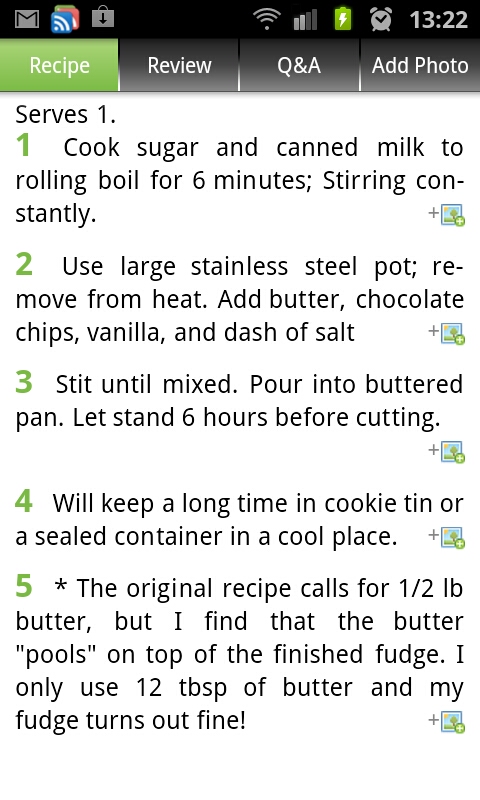
And viewing recipes gives you a clear list of the ingredients and steps for preparing the dish:
A nice feature is you can switch between US (imperial) and Metric measuring systems, so it caters pretty much for everyone.
Adding stuff to your shopping list requires a very easy registration where you only have to enter your name.
As for the categories, there's A LOT!! And literally thousands of recipes to choose from.
You can even change the theme of the home screen for the app:
If you are in any way interested in food and preparing it, this is definitely the app to get. The only small complaint I have, and this is by no means a deal breaker, is that not all the recipes includes photos. I tend to not even look at recipes when they don't have photos included - I want to see what I'm going to make damnit! :)
Get it here
Till next time!
Wednesday, September 21, 2011
Friday, September 16, 2011
How to get AllShare on the Galaxy S2 to work
If you have the Galaxy S2, you would have noticed an app in the list called AllShare:
See, that blue one in the top row.
Now, at first it didn't work on my phone, it just didn't connect. What you can do with it, however, is actually pretty cool - you can play items that's on your PC on your phone, and vice versa. NEAT!
I did a little digging, and found out how to get it to work. Note, I have Windows 7, and use the normal Media Player program that comes per default out with Windows, so this guide will help you to get yours working if you have the same OS and use Media Player...
So, to get it to work, you must first allow your PC to be accessed in this way. In Media Player, that's quite simple to do. When your Media Player is open, just below the Title bar, you'll see the Back and Forward buttons, and below that the Organize, Stream and Create playlist options:
Clicking on the Stream option, gives you a few options:
If you want to control your Media Player from your phone, tick the "Allow remote control of my Player..." option, and if you want to play the files on your PC on your phone, tick "Automatically allow devices to play my media..." option. You'll get some warnings, but if you're confident that your network is secure, and you don't mind sharing your files like this, you can go ahead and enable the features.
That should set up your PC to allow the AllShare app to fully work now.
So, the AllShare app works like so - starting it up gives you this:
From this screen you can share the Videos, Pictures and Audio files on your phone - that is, view them on your PC. The only small issue I have here, is when tapping on any of the options, it just gives you one big list with everything of that category on your phone, no folders or any order, so if you have lots of files, it can take a while to sift through them.
Here's a list of my Videos:
And, when tapping one, you get to choose on which device you'd like to play it:
Playing the file gives you the controls for it on your phone, but it obviously plays on the device (in my case, my PC):
Now you have to admit, once again, that is a very cool feature! :)
You can just as easily play the files that are on your PC (loaded in your Media Player) on your phone. You tap on the Remote device option at the top, which will show you all the devices that have media sharing like this enabled on your network:
And tapping on a file, plays it in your phone:
See, that blue one in the top row.
Now, at first it didn't work on my phone, it just didn't connect. What you can do with it, however, is actually pretty cool - you can play items that's on your PC on your phone, and vice versa. NEAT!
I did a little digging, and found out how to get it to work. Note, I have Windows 7, and use the normal Media Player program that comes per default out with Windows, so this guide will help you to get yours working if you have the same OS and use Media Player...
So, to get it to work, you must first allow your PC to be accessed in this way. In Media Player, that's quite simple to do. When your Media Player is open, just below the Title bar, you'll see the Back and Forward buttons, and below that the Organize, Stream and Create playlist options:
Clicking on the Stream option, gives you a few options:
If you want to control your Media Player from your phone, tick the "Allow remote control of my Player..." option, and if you want to play the files on your PC on your phone, tick "Automatically allow devices to play my media..." option. You'll get some warnings, but if you're confident that your network is secure, and you don't mind sharing your files like this, you can go ahead and enable the features.
That should set up your PC to allow the AllShare app to fully work now.
So, the AllShare app works like so - starting it up gives you this:
From this screen you can share the Videos, Pictures and Audio files on your phone - that is, view them on your PC. The only small issue I have here, is when tapping on any of the options, it just gives you one big list with everything of that category on your phone, no folders or any order, so if you have lots of files, it can take a while to sift through them.
Here's a list of my Videos:
And, when tapping one, you get to choose on which device you'd like to play it:
Playing the file gives you the controls for it on your phone, but it obviously plays on the device (in my case, my PC):
And here's a screen shot to serve as proof that the movie is playing on my PC:
Now you have to admit, once again, that is a very cool feature! :)
You can just as easily play the files that are on your PC (loaded in your Media Player) on your phone. You tap on the Remote device option at the top, which will show you all the devices that have media sharing like this enabled on your network:
Tapping on the device, will open it up, and give you the options to browse the various media files in your Media Player, including play lists.
Here is my Collective Soul (GREAT BAND!) playlist:
And tapping on a file, plays it in your phone:
The AllShare app is really cool as you can see, just another awesome feature of the Samsung Galaxy S2. Damn this is a cool phone, if you're even considering getting one, just stop hesitating and DO IT!!
So, that covers how to work with the AllShare app that comes with the phone. It would have been nice for there to be some sort of tutorial or manual on how to get it working, but, luckily, I've written this short guide :)
Till next time!
Wednesday, September 14, 2011
QR Code Scanner: QR Droid
If you've never heard of so called "QR Codes" - it is a kind of bar code that can contain different kinds of information. It is already very popular to have a QR code printed on the back of your business card with all of your contact details embedded in it, which makes it a lot easier to get the info of the card into your phone, for example.
Now, most phones nowadays have cameras, and with special apps, you can easily turn your phone into a QR code scanner.
I have QR Droid (Get it here) installed on my Samsung Galaxy S2, and find it quite useful, as these codes are popping up more and more out there!
Here is an example of one:
If the scanning app you use allows it, it will automatically turn phone numbers and website addresses into clickable links.
A good place to generate these codes for yourself is here
WARNING: As you can imagine, people can generate these codes that contains links to malicious websites for example, so do not scan a code from a site or place you don't trust!
As for QR Droid, which I use, it is very straightforward and simple to use. It gives you options to scan a new code with your phone's camera, use a saved image on your phone, from a image URL, or you can even enter in a bar code (yes it scans normal bar codes as well...)
Now, most phones nowadays have cameras, and with special apps, you can easily turn your phone into a QR code scanner.
I have QR Droid (Get it here) installed on my Samsung Galaxy S2, and find it quite useful, as these codes are popping up more and more out there!
Here is an example of one:
EDIT: I've made a post with QR Codes to my favourite games - go check it out!
If the scanning app you use allows it, it will automatically turn phone numbers and website addresses into clickable links.
A good place to generate these codes for yourself is here
WARNING: As you can imagine, people can generate these codes that contains links to malicious websites for example, so do not scan a code from a site or place you don't trust!
As for QR Droid, which I use, it is very straightforward and simple to use. It gives you options to scan a new code with your phone's camera, use a saved image on your phone, from a image URL, or you can even enter in a bar code (yes it scans normal bar codes as well...)
Now that QR codes are becoming more popular by the day, getting an app like QR Droid is a must if you have a smartphone with a camera!
Till next time!
Monday, September 12, 2011
Standard Calculator, and some great replacements
The Samsung Galaxy S2 obviously (like all phones) comes with a calculator app. I had a quick look at it, and it is very basic (I think the only advanced feature it contains is the ability to use parentheses, or round brackets if you will).
The only option it includes is to change the text size, and to clear the history. As you go along, it keeps everything in the display part about the keypad (you can swipe down the keypad section to see everything a bit more clearly).
EDIT: It turns out there's a bit more to the standard calculator app that what I first noticed. If you turn the phone horizontally, you get access to a full scientific calculator. *sheepish grin* - Thanks Martin for pointing that out!
Anyway, a short while ago I need a scientific calculator (EDIT: see above if you want to use the normal calculator app for that...), because I had to work with Sin Cos and Tan (uggh...). I did a quick search on the App Market and got myself RealCalc, which even looks like the same Sharp calculators we had at school:
Ahh that's a lot better :) Get it here
It even includes some nice features like a unit converter, and constant values:
Pretty neat!
I showed off my new snazzy scientific calculator app to my father-in-law, who is a mechanical engineer, and he asked me if there's an app like his old HP-48, which is a graphic calculator using the Reverse Polish Notation (big words!) - of course I quickly had a look, and downloaded Droid48, which is basically an exact copy of the HP one:
It works way different than a normal, human calculator :) - but if you're an engineer and will be needing one of these, luckily there is one available! Get it here
There you have it, some info on the basic calculator app, and 2 great replacements if you need just a little bit more!
Till next time!
The only option it includes is to change the text size, and to clear the history. As you go along, it keeps everything in the display part about the keypad (you can swipe down the keypad section to see everything a bit more clearly).
EDIT: It turns out there's a bit more to the standard calculator app that what I first noticed. If you turn the phone horizontally, you get access to a full scientific calculator. *sheepish grin* - Thanks Martin for pointing that out!
Anyway, a short while ago I need a scientific calculator (EDIT: see above if you want to use the normal calculator app for that...), because I had to work with Sin Cos and Tan (uggh...). I did a quick search on the App Market and got myself RealCalc, which even looks like the same Sharp calculators we had at school:
Ahh that's a lot better :) Get it here
It even includes some nice features like a unit converter, and constant values:
Pretty neat!
I showed off my new snazzy scientific calculator app to my father-in-law, who is a mechanical engineer, and he asked me if there's an app like his old HP-48, which is a graphic calculator using the Reverse Polish Notation (big words!) - of course I quickly had a look, and downloaded Droid48, which is basically an exact copy of the HP one:
It works way different than a normal, human calculator :) - but if you're an engineer and will be needing one of these, luckily there is one available! Get it here
There you have it, some info on the basic calculator app, and 2 great replacements if you need just a little bit more!
Till next time!
Subscribe to:
Posts (Atom)