Friday, February 24, 2012

QR codes to some of my Favourite Games

Here are some QR codes to some of my favourite games (at the moment, sure it'll change in the future hehe):

Alchemy (see review here)

Edge full version and the demo

Minecraft Pocket Edition and the demo (see review here)

Osmos and the demo

World of Goo and the demo

Game Dev Story (see review here)

If you don't know what to do with these codes, have a look at my review on QR Droid

Game Review: Minecraft Pocket Edition

If you don't know what Minecraft is, chances are you've only started using the internet this very second. :)

Minecraft is the Indie game that took the world by storm. It's a big sandbox game where you can shape the world to your exact liking. Add to that the harvesting of resources and building stuff (anything from a small log cabin in the woods to deep underground mines and glorious works of art!), as well as zombies and sheep, and you've got a pretty amazing and addictive game!

People will complain about the blockiness of the graphics, but that is what gives this game so much charm and personality! It just shows you, a games doesn't necessarily need awesome and high detailed graphics to be awesome!


Now, the pocket edition is a work in progress, much like the desktop version was for so very long. As you can see in the above screen shot, we're on version 0.2.0 alpha. So at this stage, it's not even close to what the desktop version is, but it's definitely getting there!

I bought the game for $0.10 when Android had there massive app download drive, but you can still buy it for $6.99 - a little steep for my liking (very happy that I got it for ten cents!), but I foresee great things for this little gem in the mining (see what I did there?? Gem? Mining? Minecraft??? ;P

Luckily, a demo version is available, so you can get that to first check it out.

Get the full version here

And the demo version here

So, at this stage the game has two modes - Creative and Survival. Creative mode just gives you this big, randomly generated world which you can sculpt to your exact liking, where the Survival mode adds a few things, like gathering some resources, and fending of zombies at night!

Here is my little house by the sea, which I started when the game was still version 0.1.0 (no survival mode back then):


In the second screen shot, I'm actually flying (something you can only do in creative mode) - you'll also see the on-screen controls on the left. The button in the middle is to jump - double tap that one to fly.

I must say, the game's performance on my Galaxy S2 is extremely smooth and without drops in frames per second at all. It does take some getting used to using the onscreen controls like that. Looking around is done by tapping and moving your finger across the screen. If you tap an hold in one spot, you'll start digging that specific block if it's close enough.

Here's a few from my little house's "porch" :)


The survival mode introduces a few extra things, most notably zombies that want to do nothing but eat your brains. So the first thing you always do in a Survival game is build a shelter, so that you can survive the night's horrors!


As you can see in the above screenshot, I made my little shelter by digging out a cave in the side of a hill. I recommend doing that because it's quicker.

You'll also notice the health bar, so in Survival mode you can die! EEK! ;)

Furthermore, you can start gathering some resources, with which you can only build at this stage. In the desktop version, you can craft all kinds of stuff, like weapons, doors, furniture, traps, etc. I'm sure these will be added to the game as new versions get released! (Hopefully!)

With this version you have a limited range of blocks that you can place, but I'm sure this list will also keep growing as time goes by:


As you can see, you have an unlimited supply of most of the blocks and items, but some of them you have to gather in your adventures.

I was lucky and survived my first night :) I did face a few zombies, but that wasn't too hard:


Anyway, this is a really good little time waster, and the promise of more updates to expand the features of the game means it'll keep on getting better and better. (I'll keep everyone posted on the updates as they happen!)

One thing I haven't tried out though, is joining some friends in a multiplayer game. If you have, feel free to leave some comments on how that is! Also, if you've build a masterpiece, and would like it to be featured on this blog, please let me know, I'd love to show off some of your hard work here :D

Time to go build a basement for my house! (will post some screen shots of that later!)

Till next time!

A nice 3d Live Wallpaper

This is my live wallpaper at the moment:


It's basically a landscape with these floating islands (think Avatar), and this big planet in the skyline. All very nicely rendered in 3d. The free version only includes the one option, but if you buy it you get some extra scenes as well.

Here's a movie clip of it in action:


Note: Only Avalon's Falls are in the free version...

Get the free version here

Till next time!

50gigs free Cloud Storage by Box

I have some good news for all of you with Android devices. The guys from www.box.com have created an Android app, which you can get here, and by simply registering for a free account, they'll upgrade your storage space to a very very sweet 50 gigs!

Here's the instructions which I copied from their site:


This promotion ends on Friday, March 23, 2012 at 11:59pm PST, so grab your free 50GB on Box by following these steps:

1. Visit the Android Marketplace and download Box for Android
2. Log into your account or register for a new one directly from the app
3. Start sharing and collaborating in the cloud
4. (optional but recommended) Tell the world how you'll use your 50GB with the hashtag #Box50GB

As you can see the special is about to run out, so do it quick!

You can then backup your files online, like your photos and important documents. Very handy indeed, and 50 gigs is quite a lot, especially if it's free!

Hope you get it! I got mine a few minutes ago...

Till next time!

Saturday, February 11, 2012

Nintendo Entertainment System (aka NES) Emulator

I'm going to cut right to the chase. See the below screen shots:


Yes, your eyes aren't deceiving you! I was playing Super Mario Brothers on my phone! To do something like that, you need something that we call an emulator, and together with that, you need the actual ROMs, which are the games themselves.

The emulator I'm using here is a very nice, and most importantly, free one called John NES Lite (NES Emulator).

Get it here.

The free version works just like the paid for one, but it is ad supported.

It includes several customization options. For example, you can hold the phone portrait or landscape, you can alter the size of the buttons on screen, you can take screen shots, etc.

Now the only thing you need to actually play some games on it, would be the games themselves. I am not sure how the copyrights and that kinda stuff works for games on the NES. I take it, if you own the game, you can download it without worrying.

To get some games, simply google "nes roms", download the roms, copy them to your phone, and the app should automatically scan your phone for new games :)

Ahh, nostalgia! Enjoy!

Thursday, February 9, 2012

Upgraded to 2.3.4

With my Samsung Galaxy S2's built in Update method, I updated my phone to Android 2.3.4 a week or so ago.

I'm happy to report that it was quite straightforward to do, and you don't have to do it via Kies at all, you simply do it from the settings section of the phone.

Here's a quick tutorial on how to go about it:

First, go to Settings and scroll down to the bottom:


At the bottom of the list, you'll see the option for "About phone" - go ahead and tap on that:


This shows you all the info of your phone, and at the top is the option to do a Software Update for your phone. Tapping on that one gives you:


From here, just hit Update at the top, and follow the on-screen instructions. That's unfortunately as far as my instructions can go, because I've already updated mine, and when I try it, I simply get a message telling me there are no current updates available.

Just note, the update does take several minutes to complete, and while the update is in progress, you won't be able to use the phone (make and receive calls) at all. Make sure your phone is charged before you do something like this...

Till next time!

Android games on Humbe Indie Bundle

If you don't know what the Humble Indie Bundle is, allow me to tell you :)


Firstly, Indie is an abbreviation for Independent Developer. That means it is someone, or a small team, who, in their spare time, writes apps and games. These guys do amazing work, and it feels really good supporting them, as they put in many many hours of time and effort into creating awesome apps and games.

Now, the Humble Indie Bundle has a very unique concept. That is, YOU decide how much you're willing to pay for the specific bundle they have going on at the time. Be it $0.10, or like Notch (the developer of MineCraft) did once, $4096 - it remains up to you.

You can then even decide where your money goes to, be it the developers, a tip for the guys arranging the bundle, or some charities, or split up any which way between the three!

Another bonus is if you pay more than the average, you usually get a free game thrown in. I have also seen on several occasions that as the bundle's closing date gets closer, they add in more games!

I just bought Edge, Osmos, Anomaly and World of Goo for a very reasonable price (I did, after all, decide on how much I wanted to pay).

I'm busy downloading them, and will do a review on each one as I get around to it.

So, if you also wanna get into this amazing special, head over to http://www.humblebundle.com/ and support these awesome guys! You have 5 days left to do so!

The other awesome part is that these games are cross-platform!! So even if you don't have an Android phone yet, you can still get them on your Windows PC, your Mac as well as Linux.

Till next time!

Monday, January 23, 2012

Use your Galaxy S2 as a Portable Wifi Hotspot

One very nice feature of the Galaxy S2 (and some other phones in the Galaxy range), is the ability to use it as a portable wifi hotspot! This is fortunately very easy and simple to set up!

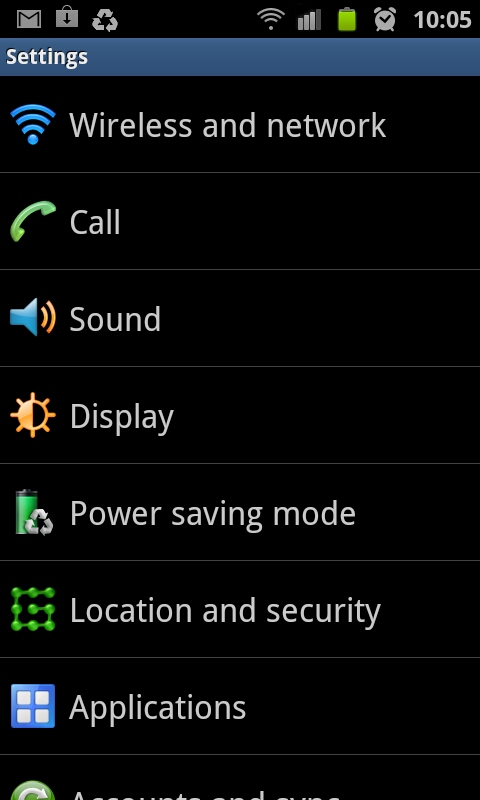
Go into your phone's settings:


There, tap on "Wireless and network", which brings you to this screen:


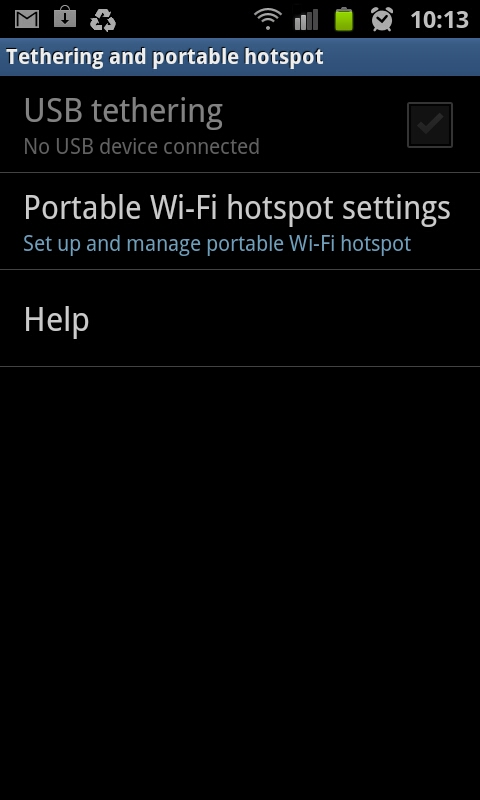
Here, tap on "Tethering and portable hotspot", which takes you here:


Now tap on "Portable Wi-Fi hotspot settings":


On this screen you can enable your wifi hotspot, and also configure the security settings and stuff like that for the phone:


I'd highly recommend using WPA2 PSK as your security setting, otherwise anyone in range can connect to your phone, and with the ludicrous data rates out there, this can get costly, REAL quick!

Now simply connect with your laptop/tablet/other cellphone to your phone's wifi hotspot, enter the password, and you should be good to go! Very handy for if you don't have a 3g dongle or built-in 3g in your laptop. Also if you're in South Africa, free wifi hotspots are a very scarce thing - also, the ones that do exist almost never work!

Enjoy!

How to make one of your MP3 files a ringtone

If you have the Samsung Galaxy S2 (or any other Galaxy range I'd reckon...), setting one of your music files as a ringtone isn't as straight forward as it should be.

One would think that to do this, you need to browse to the file with the file manager, but that doesn't give you the option to make a specific mp3 a ringtone.

You can do this, however... You need to do it from the built in Music app.

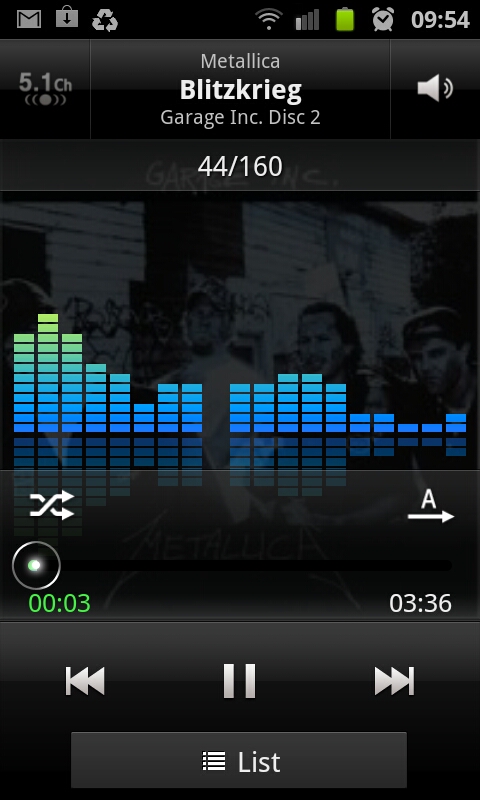
First is to go to and play the mp3 you would like to make your ringtone:


Now tap on the bottom left button of the phone (uhm, I don't know what to call that button actually haha! It's to the left of the home button in the middle on the phone) - this will bring up the options for the screen you're currently on, like so:


One of the options there is "Set as" - tap on that, which will give you this screen:


And voila, select the appropriate option, and you can now listen to Metallica whenever someone calls you :)

Tuesday, December 20, 2011

Game Review - Game Dev Story

I first saw this game on our iPad - I downloaded the free version, but wasn't prepared to pay a few dollars for it - but when it came out for $0.10 on the Android Market, I couldn't resist!

The whole idea behind the game is that you are a game developing company. With that comes doing research, hiring staff, training and leveling up the staff, doing contracts, going to gaming conferences, and, most importantly, creating games :)


You start the game by starting your game development company, and a small office with only a few employees. Also, at first, you can only develop games for the PC.

Tapping anywhere on the screen opens up the menu, from where you can do all kinds of stuff, like start development for a new game, hire, fire, train and level up your staff, check out your statistics, etc.

When you develop a new game, you get to choose a few options for it, like which platform, the genre, type, and also the direction (for example, you can allocate extra money towards how quickly you develop the game, or even double the whole budget to increase all kinds of stats for the game)


As the game progresses, several companies release consoles, which you can then buy a license and develop for. The licenses get quite expensive, but can mean you make lots more money, since they hold a much bigger market share. I like how the consoles have names like "Play Status" and "Microx 480" :)

You start with only a few options for Genre, but as your staff gets more skilled, you unlock more Genres to choose from. Each Genre you also level on its own, by using it with a suitable Game Type. A few examples for Genres are "RPG", "Action", "Shooter", etc.


Then you have a few Game Types - these can include options like "War", "Robot" and even "Swimming".

Obviously not all Genres and Types go together, but that doesn't mean you can't give it a shot anyway!

Next you select the Direction for the game:


This can improve your game, but at greater cost. Usually I select the Budget+ option if I can afford it.

Lastly, you can allocated more points in certain aspects of the game, like Realism, Cuteness or Game World:


(Hint: From what I've seen, you get more points for the Direction of the game whenever you level one of the Genres or Types to Level 5...)

After you've selected the parameters for the game you're developing, your team will get to work. Now it's mainly a case of sitting back and watch what they do. Each staff member have 4 stats, namely Program, Scenario, Graphics and Sound. As they develop the game, they add points to each of the 4 areas of the game.


In the process, they inevitably add bugs as well, which needs to get sorted out before you ship the game (or, if you want, you can ship the game with bugs and all!)

At certain stages of the game, you can select specific employees to focus on a specific area of the game, for example Graphics or Sound.


Here you can see the team hard at work:


Every once in a while, one of your staff members will ask if he/she can attempt to boost one of the aspects of the game - this has a certain percentage to succeed - if they fail, you add a whole lot of bugs to the game, which means it takes a bit longer to get finished.

You can, however, use some research points to increase the percentage of success with a boost attempt. (Research points you get as your team figures stuff out, and so on - it happens pretty much automatically)


I usually just do it, because fixing bugs at the end of development, gives you more research points (which you use to level up your staff, among others...) - so in my opinion, it's a win-win.

That's basically it, you carry on until your game has been completed, give it a name, and hope it sells. 

There's a few things you can do to help make your game better - you can, for example, buy "items" from the traveling salesman who makes an appearance every now and again. Items cost 30 research points to use, and can boost one of the aspects of your game.

There's also bad stuff that can happen, like blackouts, which causes you lose some points in your current game:


It can also happen that a rival gaming company is developing a similar game to yours, which means fewer sales.

You can advertise as well, which costs money, but increases your fan base (your fan base even ages as time goes by, so you lose some, and get some new ones).


Then there's contracts you can do for a quick buck, and even the annual GameDex (gaming conference) and Gaming awards!

For a small game like this, there's definitely lots of aspects to keep you coming back for more!

This is probably the game I'm playing most at the moment - it's lots of fun, and well worth the money in my opinion! You can always try out the demo of course, but I'm sure you won't be sorry if you buy the full version - it's selling for $3.00 or so, I was very lucky to have paid only $0.10 - but knowing what I know now, I'd buy it for the full price as well!

Get it here

Till next time!

Friday, December 9, 2011

Lots of apps for $0.10

This is just a quick post, for those who didn't know, Google is pushing 10 billion app downloads, and with that they have 8-12 apps everyday marked down to only $0.10! That's R0.80 for us South Africans!

I've bought several already, so lots of reviews that will be coming in the next couple of weeks!

My favourite at the moment - Game Dev Story - get it here

Stay tuned!

Tuesday, November 29, 2011

Lots of FREE, PREMIUM GAMES

Please have a look at this screen shot:


Yes, you're seeing it correctly. On the Samsung Galaxy S2, via the Samsung App Market, all of these games have finally come to the S2 for free as well!

Here's the list:

  • Assassin's Creed
  • Hero of Sparta
  • Modern Combat 2
  • Brother in Arms 2
  • Avatar
  • Dungeon Hunter (I'm busy downloading this one :)
  • Spiderman
  • Ganstar Miami Vindication
I'll try to go through them all eventually! Like I said, I'm busy getting Dungeon Hunter, will let you guys know what I think of it!

EDIT: Dungeon Hunter, sadly, appears to only be a demo :( They shouldn't say Free, when it is, in fact, NOT FREE. GRRR - will let you know about the others...

If you didn't know this before, these games weren't available on the S2 (only the normal Galaxy), but it looks like they've finally updated them all to be compatible with the Galaxy S2!

Sheesh, wish I weren't so busy :(

Will keep you posted! Till next time!

Thursday, November 24, 2011

This made me SMILE :)

Hi guys, I know it's been a while since I posted, but it's just been crazy busy here! In the meantime, this video really made me smile, check it out:


Thursday, November 10, 2011

Galaxy S2 Photo Editor

The Galaxy S2 comes standard with a very decent photo editor app, called, wait for it :) - "Photo editor" - very handy for a few quick touch ups, cropping or rotating. It's not a full Photoshop type app, but for every day use, it does the job nicely!

In this post I'll quickly go over all the features it has - starting the app, allows you to select which image you want to edit:


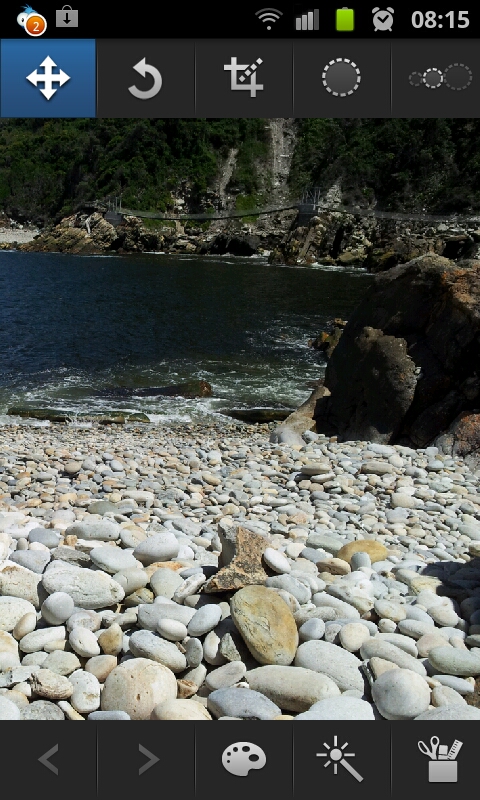
You can either select an existing image, or take a new one... Once you've selected the photo you want to edit, you'll get a neat interface with everything you need right there:


The most basic feature any decent photo editor app must have is a rotate one, and luckily, this one does! It also includes "flip horizontally" and "flip vertically" features:


The next one you'd need would be a cropping tool - we always get stuff like fingers or bystanders that spoil the photo, so cropping the pic can easily fix that. It can even turn a crappy photo into a MASTERPIECE!!!

This little app also have several selection related tools and features, which allows you to make edits to only certain parts of a photo:


At the bottom you'll see a back and forward button, so you can undo and redo any steps you take... Next to that you have a paint pallet icon, which gives you options to play with the brightness and contrast settings:


The magic wand tool gives you options to make some blur related changes to your selection (you need to make a selection first for this to work):


The final tool in the list gives you some other effects you can apply to your pic:


So there you have it, that covers the stock standard "Photo editor" that comes by default with the Galaxy S2 - it's got enough to allow you to do the basics, but it won't be used by professional photographers :) (they'll anyway rather use their PC or Mac)

I'll have a look to see what alternatives to the standard photo editor there are out there, and maybe do some reviews on them too.

Till next time!