If you have a Samsung Galaxy S2, and you don't use the Swype keyboard feature (I haven't tried it yet...), then you would also have notice a flaw or 2 on the built-in keyboard it comes with:
Yup, as you can see there's no comma! To type a comma, you have to press and hold the period key, which gives you the other options, like the comma, question mark, quotes, etc.
I didn't think at first that this would bother me that much, but it turns out I type a lot of commas when I type! Also, another thing that I wasn't too fond of was the inability of the phone to support my home language, which is Afrikaans (yes, English is my SECOND language - not too shabby hey!) - so I did what every tech nerd would do, and hit the good old Google.
After a few minutes, I had a new keyboard app installed, and a few minutes after that, my predictive text was suggesting Afrikaans words as I typed them!
First off, there's no support for Afrikaans by default on Android, so the only way to get Afrikaans as a language when you type, is to actually get a third party keyboard. I downloaded "AnySoftKeyBoard" - get it here
After installing it, you must activate it as you main keyboard. To do this go to the Settings screen, and tap the Language and keyboard option:
Here you'll see a new option under the keyboard settings header, namely AnySoftKeyboard - simply tick the box next to it, and you're good to go (note - you'll get a warning from the phone mentioning key logging and so on, I've been assured that this app doesn't collect any personal data, and it has had between 100000 and 500000 installs according to the Android Market, so I reckon it's safe!):
At the bottom of this page you'll also see the AnySoftKeyboard settings button, which has a whole lot of options and features you can tweak to your exact liking. I just left it on the default settings for the time being.
Now, when typing a message, and the new keyboard isn't active yet, you have to change it to use the new keyboard - tap and hold on the button that looks like a gear (next to the enter key, bottom right), and select AnySoftKeyboard from the list there, which will give you a the new keyboard:
Next, to get Afrikaans loaded - click here to download the Afrikaans Language pack for the AnySoftKeyboard (A big thanks to they guys at Skullkey who created this language pack) - next get it on your phone (I used ES File Manager to copy it over my Wifi network, but you can use the USB cable too) - this is an external app, so to install it, we must first allow the phone to install third party, or non-Market, apps.
To do that is luckily very easy. Simply go into your phone's settings, and tap on Applications:
At the top of the list, is the check box for "Unknown sources" - go ahead and check this to enable your phone to install apps located on your phone's memory or SD card. (You'll once again see a warning message, read it and click Ok if you're happy).
Now browse to where you copied the file on your phone, and tap on it to install it:
Once it's installed, you'll be pleasantly surprised that your AnySoftKeyboard now includes Afrikaans predictive text - handy if you're an Afrikaans speaking individual like myself :)
Also, it has a COMMA BUTTON!!! whoohoo :) - And, of course, there are many other languages you can get for it as well!
Please note, I cannot be held responsible if you break something, so if you do any of the above, or anything on this website for that matter, do so at your OWN RISK!
That's that! Till next time!
Tuesday, September 6, 2011
Monday, September 5, 2011
Standard Feature: Clock
The Samsung Galaxy S2 has a very nice Clock app pre-installed. It allows for pretty much everything you could need in such an application, and so far I haven't found a need for a third party one.
Opening the app gives you a menu bar at the top, with 5 options:
Now, it only shows 4 options (when in portrait mode that is...) at a time, but if you look closely, whenever the phone shows tabs at the top like this, and there are more to either side, there's a blue glow, which means you can drag the tabs to reveal more. It's quite subtle, so look carefully!
Anyway, the five options - Alarm, World Clock, Stopwatch, Timer and Desk Clock.
Alarm
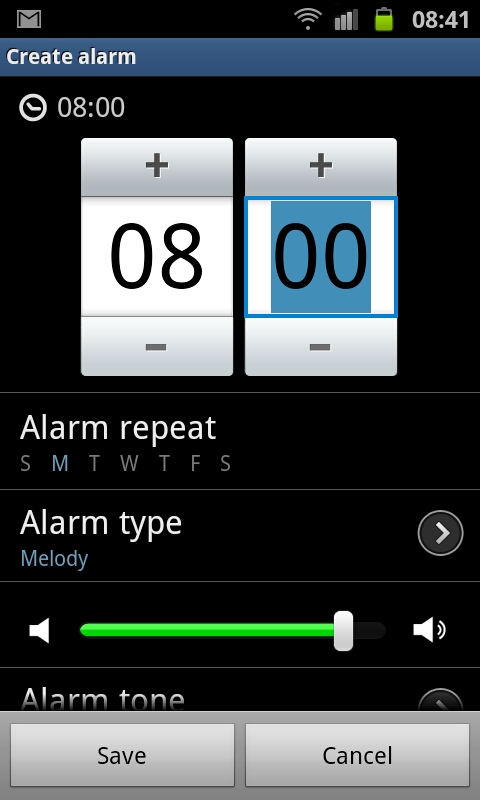
The alarm gives you the various options you'd expect from a fully functional alarm, and more! You can:
Opening the app gives you a menu bar at the top, with 5 options:
Now, it only shows 4 options (when in portrait mode that is...) at a time, but if you look closely, whenever the phone shows tabs at the top like this, and there are more to either side, there's a blue glow, which means you can drag the tabs to reveal more. It's quite subtle, so look carefully!
Anyway, the five options - Alarm, World Clock, Stopwatch, Timer and Desk Clock.
Alarm
The alarm gives you the various options you'd expect from a fully functional alarm, and more! You can:
- Create as many alarms as you'd like
- Specify the time (obviously hehe)
- Specify repeat, with options for One-time event, Daily, Every Weekday (Mon-Fri) and Weekly (which allows you to check each day of the week you'd like the alarm to go off on)
- Alarm Type, with options for Melody, Vibration, Vibration and Melody and Briefing
- The volume of the alarm
- The sound that plays - can be anything from the built-in sounds to an MP3 on the SD Card
- Snooze - nice little feature allowing you to create a snooze button for the alarm - here you specify how long each snooze is, and how many times you can snooze! Quite cool!
- Smart alarm - I don't know about you, but if I have to get awoken very suddenly with something loud, I'm instantly in a bad mood for the rest of the week pretty much - now, this one allows you to set the phone to play "softer" sounds to wake you up in the morning, for example, Rain or Forest sounds.
- Lastly you can give your alarm an unique name.
As you can see, quite a number of very cool features, and this is just for the alarm part of the Clock app that comes installed by default on the Galaxy S2!
World clock
The next tab is the World clock one - here you can have any number of world clocks, so at a glance you can see the time all over the world - very handy if you frequently travel abroad - also if you have overseas clients for example!
Adding new clocks is easy, simply tap on Add city, and then start typing - all of the timezone related cities are loaded. As you'd expect, you can set Daylight Savings Time settings as well.
Stopwatch
Not that you'd ever use the phone as a real stopwatch for when you do a marathon, for example, but it does pretty much everything it's supposed to. You can start the clock, do laps, stop, restart and reset.
Timer
The timer I use quite often, especially when preparing food :) This is the one thing my previous phone lacked, and I'm very glad to have it now. You can specify the exact time the timer should run for, and can at any time reset it. It's also easy to restart it after the buzzer goes off.
And, of course, you can change the sound it makes when it goes off, and set the volume.
The timer is probably my most used feature of the Clock app so far. It does what it's supposed to, which is great!
Desk clock
The Desk clock feature allows you to use your phone for just that - a Desk Clock :) This one you'll really only use if you buy the optional desktop dock for the phone (which I haven't yet...). It does look pretty snazzy though:
It looks even nicer if you flip the phone horizontally:
The buttons you'd need when using the phone as a desk clock are all right there. I would have definitely used this feature if I had the desktop dock thing.
Anyway, as you can see the standard Clock app that comes with the Samsung Galaxy S2 is pretty much all you'd ever need. It does everything you'd expect, and more!
Till next time!
PS - if any of you out there use a third party clock app, feel free to let me know by leaving a comment!
Sunday, September 4, 2011
Default Apps and Tools installed on the Galaxy S2
In this post I'll be making a list of all the applications that come pre-installed on the Samsung Galaxy S2 (well, in South Africa at least).
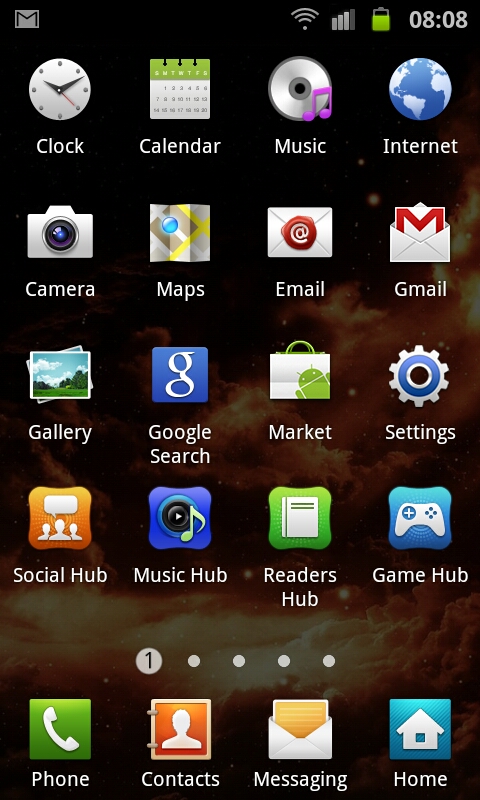
There are quite a few, and I haven't even used them all, but as I go along, I'll amend this post to talk about the details and inner workings of each of the standard installed apps. Here are the screen shots of my first three app pages:
On the thirds screen shot, the default apps stop at "Drive & Walk".
Anyway, let's get started - on Page 1 you have the following (Note - some of the apps I have already reviewed, so look out for the links to each):
There are quite a few, and I haven't even used them all, but as I go along, I'll amend this post to talk about the details and inner workings of each of the standard installed apps. Here are the screen shots of my first three app pages:
On the thirds screen shot, the default apps stop at "Drive & Walk".
Anyway, let's get started - on Page 1 you have the following (Note - some of the apps I have already reviewed, so look out for the links to each):
- Clock (read about the Clock's features)
- Calendar
- Music
- Internet
- Camera (I have covered this in great details already, see the posts: Shot taken at night with the flash, A full HD movie of the dogs snoozing, All the features and settings of the Camera, More full HD movie clips and A few photos taken with the Galaxy S2 Camera)
- Maps
- Gmail
- Gallery
- Google Search
- Market
- Settings
- Social Hub
- Music Hub
- Readers Hub (Consists out of three parts, Newspapers, Books and Magazines)
- Game Hub
Page 2 has:
- My files
- Videos
- AllShare (this one is tricky to get to work properly, but I've written a Guide on how to get AllShare to work on the Galaxy S2)
- Kies air
- Talk
- Latitude
- Task
- Navigation
- Voice commands
- Voice recorder
- Voice talk
- Voice search
- Places
- Downloads
- Photo editor (I looked at this one on this page)
- Video maker
And on Page 3:
- Mini diary
- Calculator (read what I had to say about it here)
- Samsung Apps
- News & Weather
- Task Manager
- FM radio
- IM
- Memo (I looked at this one here, but got a better alternative to it)
- Polaris Office
There you have it, quite a lot of default apps pre-installed on the Galaxy S2. As I have a look at all of these, I'll amend this post by adding the links to each relevant post.
Also, if I remember correctly, Kies air isn't installed by default - this only gets installed when you connect the phone to your pc with Kies installed. After syncing, the app should appear in your list.
Feel free to leave a comment if your phone doesn't include all of the above, or even if some of the apps are not. Would like to know what the rest of the world is experiencing :)
Cheers for now!
Thursday, September 1, 2011
Game Review: My Country
I have always been a sucker for a good tycoon type game - these are, in my opinion, the best time wasters out there! I've been looking for a decent one for a while now - I tried out Mini Tower on the wife's iPhone, but that didn't have any challenge to it at all.
A few days ago, though, I installed My Country on my Galaxy S2. At first I thought it was pretty much the same as Mini Tower, but after playing it for a while, I saw that this little game had much more depth (even though the challenge factor is still a bit on the low side...).
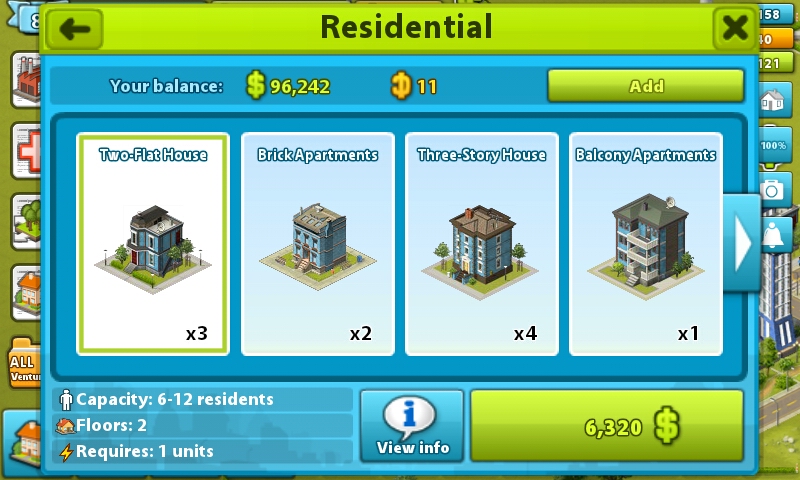
You have things like population, power and the environment that needs to get looked after. For population there are various residential building that you can build, for power you can build, for example, windmill generators, and for the environment there's all kinds of trees and parks that you can build. In the meantime, you can upgrade most of the buildings, and the commercial ones you can customize how you'd like to upgrade them.
Each building produces income and experience points (and sometimes items needed to hire "professionals" with), which you must collect on a regular basis. As you gain XP, you level up, which unlocks even more building. Furthermore, your game map is not fully unlocked when you start, so you can end up with quite a big city.
As you go along and get more people and your environment values go up, your village also gets upgraded to a better status (which also unlocks even more buildings and items...).
The game also gives you certain objectives, which you can complete to get a money and XP bonus. Building commercial buildings isn't just a case of actually building them, and they're there - most of them need "professionals" that you hire that the building needs before it can start operating. Professionals can only be hired if you have collected the necessary items for each one - these items drop from the various actions you perform in the game, like collecting income, building new buildings, or upgrading existing ones.
I have only played it for a few days, but I do find myself coming back to this game every time. One thing that is a little annoying is that when collecting income and XP, you need to tap A LOT to get through everything, I can see how this is going to become a huge pain, especially when you have a gigantic city on your hands. There is, however, an option to collect all the income on the screen, but this costs some of the in-game currency, that you must buy with real money (which I haven't done yet...). You do start the game with a few bucks, which helps to get you going a bit quicker in the beginning.
But, for now, it's a very fun tycoon game, and anybody who's a fan of the genre will have lots of fun with My Country.
Best of all, it's FREE! Gotta love the dedicated developers putting in all their time and effort to produce these games!
Get it here.
Till next time!
A few days ago, though, I installed My Country on my Galaxy S2. At first I thought it was pretty much the same as Mini Tower, but after playing it for a while, I saw that this little game had much more depth (even though the challenge factor is still a bit on the low side...).
You have things like population, power and the environment that needs to get looked after. For population there are various residential building that you can build, for power you can build, for example, windmill generators, and for the environment there's all kinds of trees and parks that you can build. In the meantime, you can upgrade most of the buildings, and the commercial ones you can customize how you'd like to upgrade them.
Each building produces income and experience points (and sometimes items needed to hire "professionals" with), which you must collect on a regular basis. As you gain XP, you level up, which unlocks even more building. Furthermore, your game map is not fully unlocked when you start, so you can end up with quite a big city.
As you go along and get more people and your environment values go up, your village also gets upgraded to a better status (which also unlocks even more buildings and items...).
The game also gives you certain objectives, which you can complete to get a money and XP bonus. Building commercial buildings isn't just a case of actually building them, and they're there - most of them need "professionals" that you hire that the building needs before it can start operating. Professionals can only be hired if you have collected the necessary items for each one - these items drop from the various actions you perform in the game, like collecting income, building new buildings, or upgrading existing ones.
I have only played it for a few days, but I do find myself coming back to this game every time. One thing that is a little annoying is that when collecting income and XP, you need to tap A LOT to get through everything, I can see how this is going to become a huge pain, especially when you have a gigantic city on your hands. There is, however, an option to collect all the income on the screen, but this costs some of the in-game currency, that you must buy with real money (which I haven't done yet...). You do start the game with a few bucks, which helps to get you going a bit quicker in the beginning.
But, for now, it's a very fun tycoon game, and anybody who's a fan of the genre will have lots of fun with My Country.
Best of all, it's FREE! Gotta love the dedicated developers putting in all their time and effort to produce these games!
Get it here.
Till next time!
Subscribe to:
Posts (Atom)