Saturday, February 11, 2012

Nintendo Entertainment System (aka NES) Emulator

I'm going to cut right to the chase. See the below screen shots:


Yes, your eyes aren't deceiving you! I was playing Super Mario Brothers on my phone! To do something like that, you need something that we call an emulator, and together with that, you need the actual ROMs, which are the games themselves.

The emulator I'm using here is a very nice, and most importantly, free one called John NES Lite (NES Emulator).

Get it here.

The free version works just like the paid for one, but it is ad supported.

It includes several customization options. For example, you can hold the phone portrait or landscape, you can alter the size of the buttons on screen, you can take screen shots, etc.

Now the only thing you need to actually play some games on it, would be the games themselves. I am not sure how the copyrights and that kinda stuff works for games on the NES. I take it, if you own the game, you can download it without worrying.

To get some games, simply google "nes roms", download the roms, copy them to your phone, and the app should automatically scan your phone for new games :)

Ahh, nostalgia! Enjoy!

Thursday, February 9, 2012

Upgraded to 2.3.4

With my Samsung Galaxy S2's built in Update method, I updated my phone to Android 2.3.4 a week or so ago.

I'm happy to report that it was quite straightforward to do, and you don't have to do it via Kies at all, you simply do it from the settings section of the phone.

Here's a quick tutorial on how to go about it:

First, go to Settings and scroll down to the bottom:


At the bottom of the list, you'll see the option for "About phone" - go ahead and tap on that:


This shows you all the info of your phone, and at the top is the option to do a Software Update for your phone. Tapping on that one gives you:


From here, just hit Update at the top, and follow the on-screen instructions. That's unfortunately as far as my instructions can go, because I've already updated mine, and when I try it, I simply get a message telling me there are no current updates available.

Just note, the update does take several minutes to complete, and while the update is in progress, you won't be able to use the phone (make and receive calls) at all. Make sure your phone is charged before you do something like this...

Till next time!

Android games on Humbe Indie Bundle

If you don't know what the Humble Indie Bundle is, allow me to tell you :)


Firstly, Indie is an abbreviation for Independent Developer. That means it is someone, or a small team, who, in their spare time, writes apps and games. These guys do amazing work, and it feels really good supporting them, as they put in many many hours of time and effort into creating awesome apps and games.

Now, the Humble Indie Bundle has a very unique concept. That is, YOU decide how much you're willing to pay for the specific bundle they have going on at the time. Be it $0.10, or like Notch (the developer of MineCraft) did once, $4096 - it remains up to you.

You can then even decide where your money goes to, be it the developers, a tip for the guys arranging the bundle, or some charities, or split up any which way between the three!

Another bonus is if you pay more than the average, you usually get a free game thrown in. I have also seen on several occasions that as the bundle's closing date gets closer, they add in more games!

I just bought Edge, Osmos, Anomaly and World of Goo for a very reasonable price (I did, after all, decide on how much I wanted to pay).

I'm busy downloading them, and will do a review on each one as I get around to it.

So, if you also wanna get into this amazing special, head over to http://www.humblebundle.com/ and support these awesome guys! You have 5 days left to do so!

The other awesome part is that these games are cross-platform!! So even if you don't have an Android phone yet, you can still get them on your Windows PC, your Mac as well as Linux.

Till next time!

Monday, January 23, 2012

Use your Galaxy S2 as a Portable Wifi Hotspot

One very nice feature of the Galaxy S2 (and some other phones in the Galaxy range), is the ability to use it as a portable wifi hotspot! This is fortunately very easy and simple to set up!

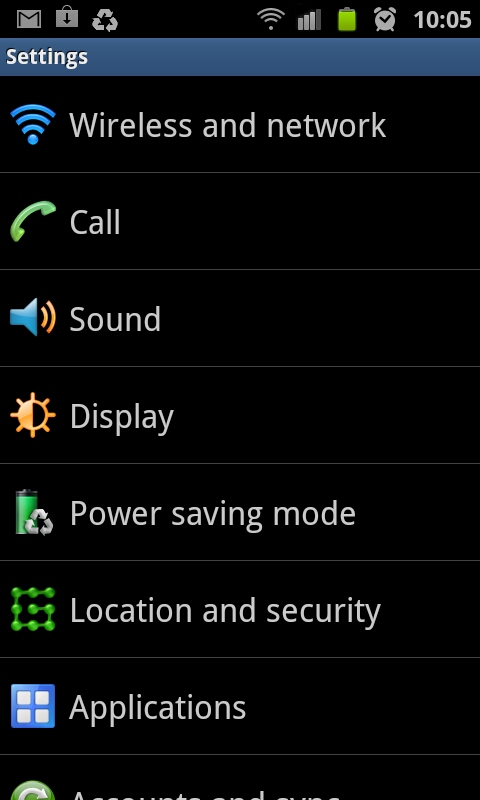
Go into your phone's settings:


There, tap on "Wireless and network", which brings you to this screen:


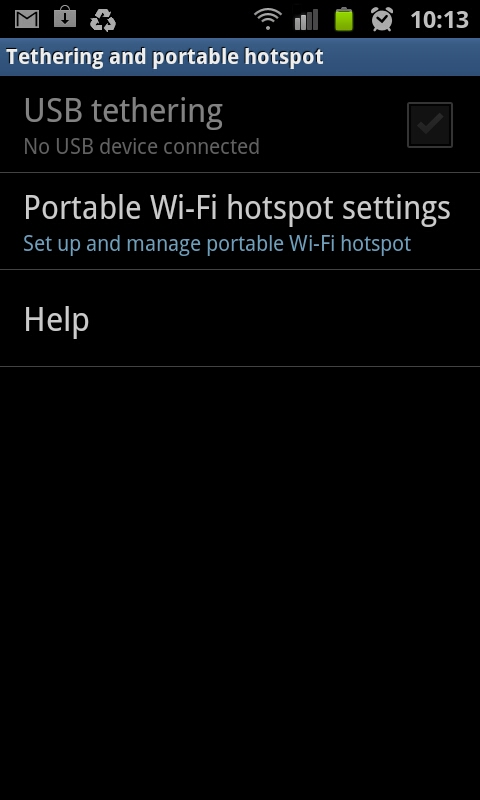
Here, tap on "Tethering and portable hotspot", which takes you here:


Now tap on "Portable Wi-Fi hotspot settings":


On this screen you can enable your wifi hotspot, and also configure the security settings and stuff like that for the phone:


I'd highly recommend using WPA2 PSK as your security setting, otherwise anyone in range can connect to your phone, and with the ludicrous data rates out there, this can get costly, REAL quick!

Now simply connect with your laptop/tablet/other cellphone to your phone's wifi hotspot, enter the password, and you should be good to go! Very handy for if you don't have a 3g dongle or built-in 3g in your laptop. Also if you're in South Africa, free wifi hotspots are a very scarce thing - also, the ones that do exist almost never work!

Enjoy!